DOWNLOAD THE APP


Customer Services
Copyright © 2025 Desertcart Holdings Limited
DOWNLOAD THE APP
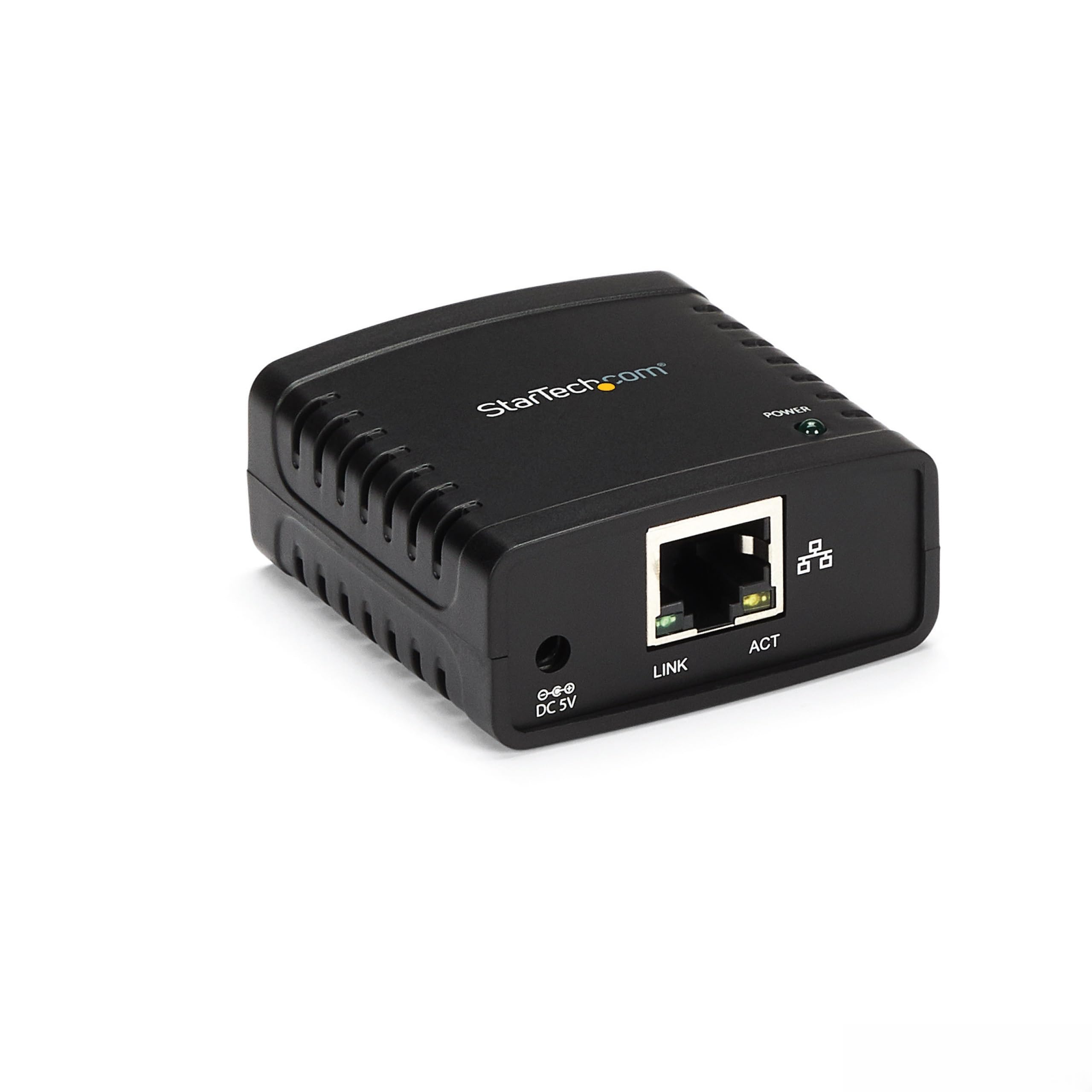
🖨️ Connect. Share. Print like a pro — because your office deserves seamless flow.
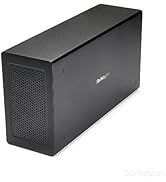
The StarTech.com PM1115U2 is a compact, reliable Ethernet to USB 2.0 print server designed to share a single USB printer across multiple users on a LAN. Supporting 10/100Mbps auto-sensing Ethernet and compatible with Windows 10 and Mac OS, it enables network printing via LPR and Bonjour protocols. While setup requires manual configuration and patience, StarTech’s strong customer support ensures you’re never alone in optimizing your shared printing environment.












| ASIN | B016A4MSA4 |
| Best Sellers Rank | #1 in Computer Networking Print Servers |
| Customer Reviews | 3.4 3.4 out of 5 stars (1,110) |
| Date First Available | November 26, 2015 |
| Is Discontinued By Manufacturer | No |
| Item Weight | 2.18 ounces |
| Item model number | PM1115U2 |
| Manufacturer | StarTech.com |
| National Stock Number | 0 |
| Product Dimensions | 2.1 x 2.1 x 0.9 inches |
L**.
GREAT Device! GOOD Support, just NOT very plug and play!
The most important thing to know is that StarTech is a good company, based in Ontario, Canada. And, if you're having trouble, if you call StarTech they can remote into your computer and help you with setup. Knowing that this was a good company based in Canada, I decided to give this a shot. I saw someone had returned it to Amazon, and I was pretty sure that that was because it was too difficult for them to set up. As it turned out, It was pretty difficult to set this up, and it is definitely NOT plug and play! I tried their software method to set this up, and that did not work to fully set up the device. Their software was also only seeing this device if it was connected to the computer via Ethernet. Another thing I ran into is because this was a used product, I had to hit the tiny reset button (with a paperclip in a tiny hole) on the side of the device that says "reset" next to it. The black button on the back of the device is actually for WPS setup, which I have not tried and I don't know if that would work or not, but that button on the back is NOT the reset button! So for me, I had to connect the device directly to the laptop with an Ethernet cable and set it up initially with the wired cable. Set up absolutely would not work using WIFI. I had to set the Ethernet settings to 192.168.1.50 and access the GUI interface at 192.168.1.10 . For me that was the only way to get this thing going, so I had to set up the device in the GUI interface. StarTech support was very helpful in showing me how to configure that. After the device is properly set up in the GUI then you have to manually configure a new printer driver for the printer in Windows to work specifically with this device and you have to follow the instructions in the StarTech manual. I'm using Windows 11 Dell laptops and a Brother HL-L2320D laser printer. It's a good device and they have very good phone support. it's just not a plug-in play device! This was a struggle. At one point, I broke the regular driver so I couldn't plug the printer directly into my laptop with the USB cable, but I ended up fixing that and I ended up fixing this device so it works great now. One of the problems was in the GUI. You have to stay on the tab that you're setting up. You can't go from tab to tab and then hit save. You have to save the settings in the tab that you're currently in, or you lose all the settings you just put in there! So, It was a real struggle, but the support was great and the device is clearly a stable and good device. It's just very difficult to set up! The other interesting thing was I set this to a static address of 192.168.1.200 and I can now reach the GUI at that address, however, for some reason if I log onto my router and look for this device as a connected client, it is completely missing from my router. I cannot find it displayed there as a client, yet it is working perfectly! I recommend the device! So I hope this helps someone!
A**A
Welcome to the 90's!
Welcome to 1998. - Very poor functionality. - Dated 20 year old interface that makes set-up a slog. - Likely same internal hardware since the 1990's. - WiFi Configuration takes you back in time - to a place you don't want to return to. - Configuring without a Windows machine is a nightmare. - Will it even work with Windows 11? (I don't know, I gave up on Windows when Vista came out). - Be sure to reset with the reset button when you return it. If you set-up print servers in the 1990's, this will be familiar and as needlessly frustrating as it was back then. Setting up requires a lot of unnecessary steps and configuration via their archaic 1990's interface. Oh and not to mention multiple device restarts along the way. In my case, the wireless connection would not work no matter what I tried. After spending 1.5 hours trying to convince it to work, I decided enough was enough. StarTech - I know this device in one form or another has been a contributor to your bottom line for a long, long time. At some point refusing to modernize and update your hardware will impact your sales.
M**C
It works!
Ok, so I really wanted this product to work, I moved my PC to my family room and wanted to still be able to print to my Brother 2240D lazer printer. Got the product today, I can see that this was used previously (power supply cord was loose (no wire wrap around it), the CD Rom plastic tape was disturbed (can plainly see it), but I decided to give it a shot. Pitfall #1" The default IP for the device is 192.168.0.10 When I cabled it to my PC, I was not able to access it through the web browser till. Had to change my Eithernet TCP/IP4 setting from auto detect to a static address of: 192.168.1.50 (50 could be any number except 10) Subnet of: 255.255.255.0 Once that was done All I had to do was follow these directions: https://sgcdn.startech.com/005329/media/sets/pm1115uw-setup-guide/pm1115uw%20setup%20guide.pdf I used the "Manual" method as the software on the CD did not load the setup wizard! Just as well. You might need help from your IP provider as to the SSID (name of the 2.4G signal), this server only operates on the 2. G frequency. But you might already have that if you are using your laptop/desktop or iPad over wireless, you can look and see what you are able to use, typically you can choose between 2.4 or 5G and each has a name (that's the SSID) So, what needs to be done once you get access to the server box is that you need change the IP address to what you network is. Example, my network is 192.168.1.1, the box default is 192.168.0.10, notice the second digit from the right side, 1 and 0 respectively, they don't match but they have to! So you have to change the server box to 192.168.1.xx (xx can be something like 60, which is what I used), the subnet is still 255.255.255.0 Save/Rest and move on to the rest of the setup, although you may need to contact you IP support to get" Caution: once its reset to the new IP, you will need to go back into your Ethernet settings for TCP/IP4 and change that to 192.168.1.50 (notice the 1) Default Router number (this I absolutely needed to get from my IP) Authentication type You should already have the Password for your wireless network (that's the Security Key) Its not plug and play but its also not too complicated but you kind of need to be a bit of a "NERD" to get this done. The startech.com has a support and contact page, I remote chatted with a nice fellow that gave me the basics but I'm have no doubt that they will walk you through it. Its working well so far and hopefully will continue to do so for a long time. I learned a lot myself and if I ever change IPs, I will know what needs to be done to accommodate the print server. Its disappointing that I was not able to connect to the server box instantly after hooking up a cable to my PC, my PC should have automatically detected the IP address of the box and connected to it but I'm not a Network expert so I don't know where the fault lies for that (PC or the server box firmware) it was set to auto detect by default. But all is well, took about an hour to get it going. Bottom line, don't be afraid, the Server does work, requires a bit of knowledge but as long as you have access to your IP support and you do have chat to Startech (and phone number as well) you should be able to work through it! It was set to auto detect by default
C**N
"L’objet reçu est d’une excellente qualité, conforme à la description et parfaitement fini. Très satisfait de cet achat." "Qualité irréprochable de la livraison : ponctuelle, soignée et professionnelle. Un service sérieux qui mérite d’être salué."
E**Z
Debe ser bueno pero a mí no me sirvió para las impresoras
K**B
De titel zegt genoeg, meer woorden moeten hier niet aan vuil gemaakt worden
J**N
Difficult to use and guides arent accurate.
R**.
funciona muy bien se pueden hacer cosas avanzadas con la aplicación de actualización de firmware
Trustpilot
2 days ago
1 month ago