DOWNLOAD THE APP


Customer Services
Copyright © 2025 Desertcart Holdings Limited
DOWNLOAD THE APP


🔐 Unlock the future of secure login—because your fingerprint is your ultimate password.
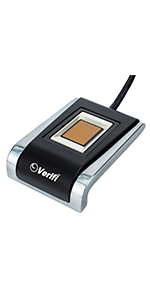
The Verifi P2000 Fingerprint Reader leverages advanced 3D touch capacitance technology to deliver high-definition fingerprint imaging. Certified for Windows Hello and compatible with PASSKEY and major password management software, it offers seamless biometric authentication for desktops. Its polished aluminum design and USB plug-and-play setup make it a stylish, hassle-free security upgrade for professionals seeking robust, next-gen login solutions.




| ASIN | B005VF62KG |
| Additional Features | Easy to Install |
| Best Sellers Rank | #76 in Security & Surveillance Biometrics |
| Brand | Verifi Smart.Safe. |
| Brand Name | Verifi Smart.Safe. |
| Color | Black/Silver |
| Customer Reviews | 3.8 out of 5 stars 487 Reviews |
| Exterior Finish | Aluminum |
| Finish Types | Polished |
| Hand Orientation | Ambidextrous |
| Handle Attachment Mechanism | USB |
| Handle Material | Aluminum |
| Handle Type | Slide |
| Item Depth | 0.75 inches |
| Item Dimensions L x W | 2.75"L x 1.75"W |
| Item Weight | 3.6 Ounces |
| Lock Type | Fingerprint Digital Lock |
| Manufacturer | Zvetco Biometrics |
| Material | Aluminum |
| Material Type | Aluminum |
| Metal Type | Aluminum |
| Model Number | P2000 |
| Number of Items | 1 |
| Product Dimensions | 2.75"L x 1.75"W |
| Shape | Rectangular |
| Style | Modern |
| Style Name | Modern |
| UPC | 854268001008 |
| Unit Count | 1.0 Count |
G**R
WORKS WITH LASTPASS AND WINDOWS 10 (1709)
Having spent way too much time researching these devices prior to purchase my hope is this will save you some heartburn and time if your goals are like mine. Simply put, it does what I wanted it to do which was be able to login to Lastpass with my fingerprint. This was my number one goal but having the ability to login to my windows machine is also a nice bonus and will allow me to set a stronger password if I desire. In performing the research there were many conflicting reviews. Not only for this device but others as well. Works with windows 10, does not work, works with Lastpass, does not work, needs drivers, does not need drivers, bla, bla, bla. My thought on this was that nobody listed what exact version of Windows they were running and the only way to see if it worked was to bite the bullet. So, I did and I’m glad I chose this one. Yes, it is more expensive, but I liked the idea of having the device sit on my desktop instead of needing to reach for a USB port to find a “dongle”. That in and of itself was worth a little more to me and obviously it need to work. If you have the above goals you can stop reading now but if you want specifics continue on. My version of windows is 1709 (aka Windows Fall Creators Update). I did NOT install anything from the “mini CD” that was included in the box. Simply plugged it in and watched the device get setup. Once that was complete it was listed under device manger in the category “Biometric devices” and specifically called an “Authen Tec Inc. AES2550”. I then navigated to Windows Settings >> Accounts >> Sign-in options >> Setup Fingerprint. It should be noted that prior to installing the reader my computer reported that my device was not compatible with Windows Hello and afterwards this was no longer the case. Even though I do have a Logitech Web Cam apparently due to it’s age it was not supported by Hello. Anyway, I went through the wizard to register a finger print and Windows told me I needed to create a PIN. I find that ridiculous considering most people think of a “pin” as a 4-digit number and this seemed like a step backward in security. Not so fast Kowalski … Just click the box that says allow alphanumeric characters and you can enter anything you like. Since I was perfectly content with my already established password, I simply used that. Bingo, ready to roll. CTL-ALT-Delete >> Lock >> swipe finger >> UNLOCK. Perfect! As for Lastpass it wasn’t quite as simple but not difficult at all. Open your vault >> Account Settings >> Multifactor Options. In the Multifactor Authentication – Premium section (YES YOU NEED TO BE A PREMIUM SUBSCRIBER) there is an icon that looks like a fingerprint. It will be disabled. Click on the “pen” icon to set it up. In my case it said something about needing to install a binary component and to “click here”. I did this, and it told me that I needed to close my browser for the changes to take effect. Since I was using Chrome and in my experience sometimes Chrome likes to run in the background I simply re-booted. This was also a good test to see how my shiny new finger print reader worked to login. Answer. Flawlessly. Anyway, I digress. I went back to the same section in Lastpass and to my dismay it was still disabled. I clicked the pen again, clicked “here” to enable and this time it downloaded the desktop application. I ran the installer and repeated the same steps. Now when I went back in to the fingerprint setting I could successfully enable the service. It asked me to enter my Master Password and swipe my finger. After that I was good to go. I logged out of Lastpass, opened Chrome, clicked on the grey Lastpass Icon, it asked me to swipe my finger and I was in. I will now change my master password to something crazy and not need to remember it. Of course, I will write it down and store it in a safe place just in case. If you use Lastpass on a mobile device, you may not want a crazy password but my phone also has a fingerprint reader (as do most newer phones and tablets) so I am in luck. I’m not going to get into the mobile setup here but know that you can set it up to login with a fingerprint. As for what you get in the “box” don’t expect much. It is a plain cardboard box with the reader and a mini CD. Nothing else. No instructions or anything but hopefully you won’t need any if you follow the steps above. All in all I am pleased with this purchase and can recommend it if your system is running Windows 10 1709. It may or may not work with prior versions, so your mileage may vary. Good luck!
W**N
Drivers not compatible. Failed to work after shutdown
I'm one of those computer geeks you call when your computer goes wonky. My old fingerprint reader (Biokey) had stopped working consistently so I got a "better" one. The packaging was 'minimal' to say the least--small cardboard box with the reader in a plastic bag. No documentation, no drivers, no website to reference. I went up to Verifi.com and found an app. Hoping it would install the drivers, I installed the app. It's useless and I've already uninstalled it. I noticed that the device was auto-recognized by Windows 10 but the device "reported a problem" and failed to work more than once. Intrigued if it might be a driver issue, I hunted around to find the device is obsolete but there were lots of sites willing to install malware to "fix" the problem. I finally found a workable driver. The device itself is labeled "P2000" but the firmware told Windows that it's an AuthenTec, Inc. AES2550 device. So, the bottom line is, if you aren't a guru, or know one and willing to give up a dozen chocolate chip cookies (my standard fee), don't bother with this device. As to the reader, it seems to work fine once the right drivers are installed. But so did my old one--for a while. Nope it failed after each shutdown or slumber. I sent it back.
D**L
Excellent - Works great in Windows 7 including 64-bit
First, the scanner itself: I've never had it reject my fingerprint, which is great. I was worried that the "swipe" style would be harder to use than the old "press your finger on a little window" style that I had before, but it's fine. I haven't tried it with little kids yet, but for adults its easy to use. The scanner body is metal, which is nice, as it has some mass to it. The others I've use have been so light that you pretty much had to hold it with one hand while scanning a finger on the other, and that's not the case here. I'm using the scanner on Win7x64, which ironically Microsoft never supported with their own fingerprint readers (which is why I had to buy this one after switching to 64-bit). There's no CD, as the driver is automatically recognized and installed when you plug it in. Configuration is a bit trickier, as the instructions say to go to the "Control Panel > Biometrics", but Windows actually buries that down in the hardware section. Once you =find= that control panel applet, clicking on it takes you to a page where you can download the free version or upgrade to a 'premium' version. I'm using the free and it works fine. The scanner is also recognized by Roboform. Since I use a very strong master password, it had been annoying having to type it, but now once a day (or whatever the timeout is) I just swipe my finger. You can swipe to log in, unlock the desktop, or switch users. Since unlocking is now so quick, I set my screensaver to time out after one minute and require a password (or swipe, of course) to get back in. It's such a simple gesture that now my PC remains locked whenever I'm not there, and it's much more secure.
R**O
Nice unit, rugged and seems reliable.
Using it in Windows 7 64bit. I keep my home workstation locked when not in use - I don't want anyone using my PC except me. I have lots of computers in the house for everyone else. However, it is a pain in the arse to have to log into my PC all the time. I decided I wanted a fingerprint scanner, and I did a lot of research to find a good reliable one. I have bad memories of that first, cheap plastic Microsoft fingerprint reader from several years back. Ended up ordering the Verifi P2000 Premium from Amazon. I just installed it tonight, but I have locked my computer a dozen times or more as a test, and the reader has never failed to unlock. Just for giggles I tried fingers that I haven't authenticated yet (you can authenticate as many of your fingers as you want - thumbs included) and none of them worked except the ones I authenticated. The unit is made of medal and VERY sturdy and heavy, plus it has rubber feet so there's little opportunity for it to slide around. I realize this is not as secure as a password - fingerprint readers CAN be fooled - but I'm not worried about the NSA or a Russian hacker getting into my house. I just want to prevent casual use of my PC, without the hassle of constantly typing my long password. Some of the earlier units (according to the reviews) didn't come with any software, but mine did, and with better instructions than the earlier ones. Installation was simple: install the software, install the driver (I opted not to install the trial version of Roboform) and plug the unit into a USB port. Then go to the Windows Control Panel, click on or use the search box to find the "Biometric Devices" icon that is now available in the full Control Panel, then click "Manage your fingerprint data". You are then prompted to scan each finger you want to use 3 times to register it. Very simple. Gave it 4 stars because it should have included visual instructions for the technically challenged (there IS a PDF quick start guide on the CD, but I didn't even know it was there - a printed sheet would have been better). +Also would be nice if the USB cord was not so heavy. I should think a thinner cord would work just as well, and would make it easier to keep the unit oriented the way you want it. But overall, I can highly recommend it. I'll update this if I have any problems in the future.
T**C
Verifi p2000
Though I rated this a 1, it is probably much better than that. I didn't need all the extras that it came with and I just found out that this company does not have this product anymore!!!! That worried me lots and I am sending this back. Already have RoboForm Pro and have been using it for years. Roboform does not need a fingerprint scanner to work extremely well with security protection though it allows you to do so. This finger print product from Verifi is expensive. I thought that the description on Amazon was not all that correct. I also purchased a "Security USB Biometric Fingerprint Reader Password Lock for Laptop PC Silver" for about $14 and works very well and also with a desktop. I will buy another for my desktop. It is simple and does the job very well. RoboForm is perfect the way it is. And my simple USB Biometric works with RoboForm if needed. All I need is protection from someone trying to breech my desktop/laptop. This Biometric does that for a lot less $$$. Oh, and this Verifi product can get you messed up a bit if you don't read the instructions very carefully. The Biometric is simple and easy. Update****** I moved my rating up to a 3. I stand corrected on the "going out of business" comment. I did see that information on 2 separate computer magazines but I know now that they were incorrect also. My apologies. You can't always believe what you read I guess.
E**T
Easy install, does what it should, but takes getting used to
I had trouble deciding 4 or 5 stars. It chose 5 stars since this was super easy to install on my Win11 Pro laptop, connected perfectly with Fingerprint Sign in, and does what it should. It needed no attention. I didn't have to install any drivers. I just plugged it in and Windows recognized it and I was good to go. However, it took me quite a while to learn how I need to place my finger on it for access. I am used to a reader that let's me place my finger on the detector; this one requires that I slide my fingertip across it with just the right angle. If I slide just right, and not to fast, it opens Windows immediately. If I slide quickly, it opens but delays a bit so that I am not sure it "got it." As time goes on I get better and better with it, so 5 stars it is. Be sure to carefully read the instruction booklet on the proper technique for swiping.
S**N
High expectations met
I have 4 Win 7/64 PCs connected to a single monitor, keyboard and mouse via a KVM switch. The KVM (ConnectPro UD-14+) contains a couple of USB ports which are switched to the active PC when the keyboard, monitor and mouse are switched. I was hoping to find a device to speed up entering 4 usernames and passwords each time I needed access to all 4 units. A further complication is that one PC is a laptop (ASUS B53) which contains a built-in and active fingerprint scanner. The laptop is connected to the KVM switch via a docking station and its scanner requires that its normally closed lid be opened only for scanning. An ideal solution would work on all PCs in my configuration and provide accurate logins. I am pleased as can be that the P2000 works flawlessly in this setup. Switching from PC to PC via the KVM switch has no negative effect and the P2000 and its driver coexist with my laptop's built-in scanner. On top of that, as others have reported, the P2000 has a high-quality feel and its weight helps keep in place on my desktop. It scans accurately in all of my attempts to date. I can only offer two mild criticisms. A more tactile surface to align one's fingertip before initiating a scan would help avoid off-center swipes and a detachable USB cable would allow users to better customize the device to their needs.
S**H
Extremely inconsistent
I works <50% of the time. I added 8 of my 10 fingers. Still, it detects me <50%. Is there something to do to improve the efficacy of this device?
Trustpilot
1 month ago
3 weeks ago