

🎯 Elevate your game and workflow with the keyboard that adapts to you.
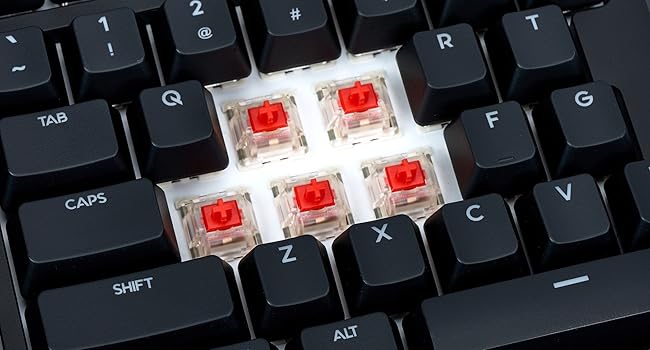
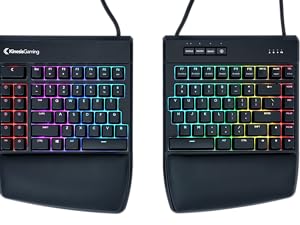
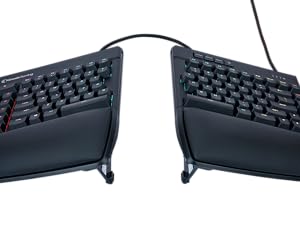
The KINESIS Freestyle Edge RGB is a premium ergonomic split mechanical keyboard featuring genuine Cherry MX Red linear switches for professional-grade responsiveness and durability. Its modular design allows up to 20 inches of separation and tenting options to optimize comfort and precision. Fully programmable with 95 keys, onboard memory, and immersive per-key RGB lighting, it supports Windows, Mac, Linux, and Chrome OS plug-and-play compatibility. Detachable cushioned palm supports and a SmartSet app enhance customization and reduce strain, making it a top-tier choice for gamers and professionals seeking ergonomic excellence.






| ASIN | B0FKCYLM55 |
| Additional Features | Fully Programmable, RGB Lighting, Ergonomic, Mechanical |
| Antenna Location | Business |
| Best Sellers Rank | #226 in Computer Keyboards |
| Brand | KINESIS |
| Built-In Media | 1 x USB Cable |
| Color | Hotswap Linear + Lift Kit |
| Compatible Devices | PC |
| Connectivity Technology | USB-A |
| Customer Reviews | 4.2 out of 5 stars 425 Reviews |
| Enclosure Material | Silicone |
| Hand Orientation | Ambidextrous |
| Keyboard Description | Mechanical |
| Keyboard Layout | QWERTY |
| Manufacturer | Kinesis Gaming |
| Number of Keys | 174 |
| Power Source | Wired |
| Recommended Uses For Product | Business |
| Special Feature | Fully Programmable, RGB Lighting, Ergonomic, Mechanical |
| Switch Type | Mechanical |
| UPC | 607998897553 |
| Unit Count | 1.0 Count |
O**D
Great keyboard
I bought this to replace a Kinesis Freestyle Edge (non-RGB with blue keys) that met an unfortunate accident. I've been using Kinesis split keyboards for years as they are the most comfortable for my wrists and shoulders. Standard keyboards force my arms to angle inward in a way that is not quite natural, and causes some fatigue. Though you mostly get used to the standard keyboard arrangement, it is always so much better to be in control of the angle as you can when your keyboard is split in half. The older Kinesis split keyboards were membrane keyboards, so I had switched to a standard mechanical once mechanicals were available, as I prefer the feeling. Also, I like backlit keys as I tend to keep my office dark to reduce glar. When Kinesis started offering mechanical, backlit, split keyboards, that was excellent as they combine the three main features I look for in a keyboard. This RGB has a bit different layout to the previous Freestyle, so if you are switching there will be some learning as the ESC key is now small and placed next to the F keys instead of being big at the top of the macro keys (though you can reprogram that top large macro key to be ESC if you want, but you'll have to avoid accidentally hitting the real ESC key when you reach for F1). Also 7 is now moved to the other side. Overall, they are very similar. Some points of interest: -when the keyboard is in FN mode, by default, there are no LEDs. This is normal. You can use the configuration utility to assign LEDS (I recommend a different color scheme so you can easily see if your keyboard is in FN mode or normal mode). -the keys themselves have a slightly dusty coating on top for better traction. My previous Freestyle either didn't have that (or maybe it had but wore off over years of use) -this keyboard comes with a wristrest, so you do not need to buy it separately. It is detachable should you not want to use it or use a different one. This wristrest has cushions built in instead of the flat plastic Kinesis ones. They feel nice, though it took a little adjustment as I switched from my old keyboard due to it raising my hands just a little. -You can turn LED backlighting on/off with a toggle switch -The arrow keys are in proper inverted-T layout and have a raised bump on the up arrow for touch placement. This is a small but nice feature; no keyboards I've used before have had the touch bump on these keys. This keyboard is great not just for gaming but for general computer usage and typing when you want something that is easier on your wrists and shoulders, and has mechanical switches for accuracy.
A**S
Great Keyboard. love the Speed Silver
I purchased this same keyboard three years ago with the red switches = and it is still going strong as my daily driver (full-time remote work). It took some getting used to as I came from a regular keyboard. Why this keyboard? I needed something that was more ergonomic to reduce pain in my wrists, elbows, and shoulders. With this keyboard with the tent kit, my arms remain close to shoulder width apart and closer to a neutral position. I'm even able to set each side on my recliner arm - supreme comfort. I stuck with the staggered layout because it's what I'm most comfortable with and didn't have the capacity for the learning curve that goes with the non-traditional layouts. While some things could use some improvement, as with anything, I did like the keyboard well enough to buy an extra one. This time with the speed silver switches. And I like it even better. I added some O-rings for a slightly softer (not mushy) feel to save some of the wear on my hands. The keys have a nice matte finish. (worn to a shine on my 3-year-old one). Linear switches aren't completely silent. The silver sounds quieter than the reds (I added o-rings to both). The SmartSet app is easy to use. There is an advanced guide for more complex configurations. Technical support is quick and provides detailed answers quickly. TIP: Save custom configuration files in a backup location, as it is possible for the confirmation files to be corrupted - especially if there is a system crash when the keyboard configuration files are open for configuration. TIP: Some docks don't handle programmable keyboards very well. If you plug this into a dock and experience issues, plug the keyboard directly into the computer. Could be better: I NEED a wireless version that also allows for a USB connection (preferably USB-C) during use &/or a standard cable that's available in many sizes for the PC connection and the connection between the two halves. I'd like more prominent bumps on home keys because I often misplace my hands on the keyboard. Option to purchase replacement keycaps - especially the space bar since it is a custom size. I have been happy with Kinesis customer service. Even though it was nearly 3 years after my purchase, they shipped a replacement keycap without charging me. All I had to pay was the shipping fee. I would have been willing to pay for a replacement set, so I could have spare ones. Overall, I highly recommend this keyboard. It's expensive for a keyboard but is very competitively priced for split keyboards.
E**T
Quality ergonomic keyboard, but takes work to customize and adapt to
There are many extended reviews of the Kinesis Freestyle Edge on Amazon, YouTube and elsewhere. I will share my perspective and perhaps cover some topics others have not mentioned. I am not a gamer and purchased this keyboard for other reasons. I spend a lot of time at my computer typing documents and emails, editing photos, and doing various tasks to manage my life. I have a high-end custom laptop, use two screens, and wanted a keyboard to match. The keyboard I used for many years was a standard HP KU-1156 that came with HP desktops at the time, purchased from eBay for $12. I liked its membrane keys but they could have been better. I had some minor wrist problems and was interested in an ergonomic corded keyboard with backlighting, that matched as closely as possible the layout on a standard 104-key unit like the HP keyboard, with a numeric keypad on the right. I wanted ergonomic for the reasons mentioned above, backlighting since I generally work in low light to have improved screen visibility, and a corded design so I didn’t have to worry about charging. I am used to a standard layout and at age 70 was unwilling to learn Dvorak or work with a linear key layout or ditch the numeric keypad that I often use. The bottom line, before I go into other details is that I like the Kinesis as I currently have it configured. After much work, some modifications and learning its programming (fairly easy), and spending way too much money, I have a keyboard and separate numeric keypad that meet my needs. It is comfortable to use and ergonomic, reasonably quiet, has some useful shortcuts I made by programming the function keys with short macros, and it does the job. I give it only 4 stars since I could not buy it with the keys I wanted, Cherry MX Silent Red, it didn’t come with an integrated numeric keypad so I had to purchase a separate one, and I had to replace the number and symbol keycaps and they are still not ideal (see discussion below). Other negatives are the high cost and the very annoying fact the for an ergo keyboard you have to separately purchase their tent kit to actually make it ergonomic. I looked at many alternative keyboards but all were lacking in one way or another. Late in my search I found the Cloud Nine Ergo FS but it was large, included an integrated/non-removable wrist pad that at the time I did not think I wanted, and came with red, brown, or white Kailh mechanical switches. I had determined that if I had to go the mechanical-switch route, which I would have liked to avoid, that I wanted the Cherry MX switches. Some reviewers said the keycaps were cheap. I had already purchased a Kinesis and decided I would stick with it, but if I had found the Cloud Nine first, I would have tried it. Other keyboards I considered were: Adesso Tru-Form 150.3 –inexpensive (perhaps cheap as some reviewers said), came with membrane switches (which I would have preferred) but some keys stuck for some users, inadequately bright keys, and not as high an overall rating as the Kinesis. Perixx – one of the models was not backlit and the other one got too many bad reviews. Nulea – backlighting did not penetrate the key symbols but rather went around them. ProtoArc EK01 – battery operated so backlighting set to time out after 30 s. Further comments on the Kinesis Since I had only limited experience with mechanical switches (I would have preferred a membrane switch keyboard if I could have found one), I purchased a Griarrac Cherry MX Switch Tester, which is an array of nine different Cherry MX switches on a single base. Great idea to give me an initial impression. Based on that I would have loved the MX Silent Red, which Kinesis sells with one of their keyboards, but annoyingly it is not available on the Freestyle Edge, so instead I tried the MX Red. The problem I had with the reds, and maybe I would have adapted with time, was that I made many stutter/double key strikes. I purchased a second Edge with the Silver keys, similar to the red but with a 1.2-mm pre-travel and 3.4-mm total travel, vs the 2.0 mm/4.0 mm on the Reds. Comparing the two, I preferred the Silver and returned the Red. The reduced travel mostly reduced my stutter problem, though three months later I am still not fully adapted, but getting there. Taking a typing test, I am at about 60-65 wpm with about 97% accuracy. As I mentioned the Edge comes without an integrated keypad. With its software you can configure a keypad area in the right half of the alpha keys, and then turn it on and off as needed, but I did not want to deal with that nuisance; I often use the keypad. So, I researched keypads on Amazon and the two best options for me turned out to be the Kinesis Freestyle 2 and the Kinesis USB Numeric keypads. Of course, neither came with backlit keys and neither came with the MX Silver. The Freestyle 2 came with membrane switches and the USB Numeric with MX Black. I purchased both and neither was the ideal solution. After a trial, I returned the USB and settled on the less expensive Freestyle 2. My other issues with the Freestyle Edge MX Silver was the keys were too noisy, and the keycaps for the numeric and symbol keys made no visual sense. To ameliorate the noise issue, I purchased Litorange Silicone 500PCS 40A Clear Universal O-Ring Switch Dampers. They are 0.06” thick and on most keys, I have chosen to use two of them. Some of the large keys such as the space bars posed a further problem since they are supported by the MX Silver key and also dummy posts at each end. I found that I had to play with the O-rings to get the posts to stop ringing when pressed. I typically tap the left space bar on its right end and the right space bar on its left end. I found that for those inside ends I needed to leave them alone, i.e., no O-ring spacer and to use only a single spacer on the outside ends. That has mostly solved the problem, though I may further try some lubrication in the future. The keycaps were another issue. The problem is that the LED that illuminates the keys is at the top of the keycap so for the numeric keys, if they inscribed them in the usual way the number would be below the symbol near the middle of the key, and therefore poorly illuminated. On their prior-version Freestyle Edge they addressed this issue by putting both the number and symbol at the top with the number on the left. On the newer “improved” model they chose to put the number on top and the symbol beneath. This is both counter intuitive since one is used to pressing a shift key to key the upper character and not the lower one, and problematic since the small symbols are then poorly illuminated and difficult to make out. So, I ended up having to purchase the old-style key caps and replace the ones I had, another extra cost on an already expensive keyboard. Next there were the matters of palm rests and tenting. On the newer “improved” keyboard it comes with thick palm rests. They have a silky lovely feel, but they are so thick that when I used them it put my wrist too high and I felt like I was reaching down to find the keys. I tried removing the palm rests (I have never been a palm-rest user) but found that it did not work well, especially when I wanted to tent the keyboard. I removed the pads and put them under the adjacent edges of the separate keyboard to raise them to test out the tenting concept. I liked the tenting, so I ended up having to purchase the Lift Kit (AC910) that gave me a more stable lift, and the option for three different elevations; I ended up using the 10o setting. Other than having to pay for it, I was pleased with the design and its stability, though some other reviewers have suggested it is insubstantial. Finally, what to do about the palm rests? They worked reasonably well with the pads removed, but I decided a small amount of padding would be useful. The older version of the keyboard had a more minimalist wrist pad, not as sexy, but much more functional. Those were still available, but again I had to purchase them like I had to purchase the older keycaps. The final cost of my customized ergonomic keyboard came to: Keyboard $224 Keypad $ 36 Lift kit $ 36 Extra Key Caps $ 15 Old-style palm rest pad $ 12 O-rings $ 11 Switch tester $ 20 TOTAL $ 354 Yes, that is an embarrassing amount and 30x what my prior HP keyboard that was entirely functional, cost me. I’m happy with what I have but it was crazy expensive. I wish I could have found another solution. More about the keys Photo 1 shows the keyboard from the typist’s view point. It illustrates how I have chosen to illuminate my keys which is easy to do with Kinesis software. Virtually unlimited options are possible though I avoided all the dynamic ones with changing colors. Because of the way the RGB color selection works, white is the brightest color, but I preferred a color besides white for my primary keys so I selected green which is another bright, but not the brightest option. I then used white for the numeric keys so that the symbols would be most readable and some contrasting colors over on the right for the Home/Del/End keys and Prt Sc keys and on the left for the macro keys that I programmed, so they would stand out as those are the ones I use most often. I also used the programming feature to reassign some keys from the Freestyle standard to make them work better for me. Regarding illumination levels, the Freestyle does not have a brightness control per se. Rather you select the RGB combination of colors and that will be the effective illumination level. Photo 1 illustrates my keyboard layout and colors as seen from my typing position. It shows the old-style numeric keys that I purchased, with the number and symbol side-by-side. I think Kinesis could have made both the number and symbol larger than they chose to, so that is another minor annoyance. The square brackets keys “[ and ]” and the back slash “\” I kept as the originals since I don’t often use them. In actuality the shifted symbols on those keys, “{ } |” are dim and hard to read since they fall below the LED illumination zone. The photo does not properly illustrate their dimness; with an light on in my office they are very difficult to make out. Photo 2 shows the complete keyboard and separate numeric keypad, also illustrating the older-version palm-rest pads that I purchased. Programming One of the strong points of this keyboard is the programming. I did not purchase it with that in mind, but it turned out that reassigning some of the key positions, since they were not identical to the standard 104-key design makes it work better for me. I had no idea how or why I would program the macro keys (seemed like a gamer option) but it turned to be moderately useful. For example, one thing I often do in Win-10 is go to “Bluetooth & Other Devices.” I was able to program the number-1 function key to do that in one key stroke. Not a big deal but a small convenience. I have made two other short macros and suspect in time I may discover others to map. This can be done directly from the keyboard once you “mount it” or with their software app for more extensive work. Customer Support This was good. I had numerous pre- and post-purchase email interactions with customer support (they are not available by phone) and they were reasonably prompt in reply and helpful. I would have hoped they would have simply given me the old keycaps as a courtesy instead of charging for them, since they are not even an option on the website. I only accidently discovered their availability since I watched a YouTube video review of the older style keyboard and saw that they were used at one point in time. Summing up What I would like to see improved is: 1. Offer this keyboard with membrane switches or Cherry MX Silent Red switches. 2. Include the tent kit as part of the purchase price. 3. Offer a choice from two keycap styles for the symbol keys – the old style with side-by-side symbols and their newer style. 4. Improve the older style keycaps by using larger symbols. There appears to be adequate space to make the symbols at least 50% larger. 5. Offer the older style and newer plush palm support pads as options. 6. And the most useful improvement, though this would be a major redesign, would be to offer a Freestyle Edge with integrated keypad. I am happy for now, with my Freestyle Edge. If feels like a quality product that I hope and expect will last for years. But, I’m not sure it was worth the $354 price tag and substantial investment of time. After spending many hours on Amazon and on the internet, I could not find what I wanted – a backlit ergonomic membrane keyboard with cable (not battery power) and an integrated keypad. I’m amazed that such an option is not available. The Cloud Nine came close, and as I said, if I ran across it earlier in my search, I might have ordered one of those to test out. For now, I will enjoy and live with my Kinesis and will see how it grows on me with time.
T**Y
Helped immensly with my wrist pains
I'm 33 years old and i started to game again about 2 years ago - but when I picked up some of my more favorite games, twitch shooters, i was getting a lot of pain in my wrists. I was using a Corsair K95 and a SteelSeries mouse. Switching to this keyboard and my new mouse alleviated most of the stress and it makes sense because my desk is really non-negotiable in terms of changing. It's a bit pricey but it's also good for FPS gaming because you can put aside the other half of the keyboard and you don't have to go purchase a smaller form factor keyboard, i have huge fingers and i don't need a tiny little keyboard. I recommend this to both people looking for relief as well as enthusiasts as it has solid RGB lighting, a sidearea on the left hand of extra keys to program - super cool and handy, easily customizable and programmable macros... onboard software - which is great when you are like me and utilizing a switch between two computers - the preferences are onboard so it works across platforms. As I write this review I realize there are more and more things I like about this keyboard, if you have the extra cash - go for it - you will not regret it. I will retract a few stars because of the premium aspect of the niche product i'd like a steel body option. It just makes sense especially if you are going to travel with it. I do appreciate the thick woven cable insulation but definitely do not particularly like all the plastic material for the body.
C**R
Amazing keyboard!
I was starting to get some pain in my wrists when typing. I type a lot and can't afford to slow down. I tried wrist braces and they helped a little. I borrowed a Kinesis Advantage, but didn't have the time or patience to get productive on it - maybe someday. Then I bought this keyboard with silver switches and the tenting kit. Wow! When I'm using it, I forget that my wrists are getting old. When I have to use a laptop keyboard for any length of time, I start feeling the pain again. This is an indispensable part of my work setup. I love the feel of the silver switches. The programmable keys and profiles are great. The build quality is solid. I love it.
E**.
Ergonomic design but macros destroy the keyboard
I bought this primarily for the split keyboard design, and I love this aspect. I'm never going back to any other sort of keyboard. Moreover, the keyboard looks great. The chromatic backlighting is also a good aspect of the keyboard. BUT The ease with which you can set macros is a drawback. You do this by pressing the Macro button. Which is right next to the Profile button used for switching the backlight settings. Which you can't see if you are typing in the dark relying on the backlight settings, because the special keyboard keys have no backlighting. My point is that it is VERY easy to accidentally press the Marco key. I've hit it by accident several times, a bottle of aspirin falling over has hit it, my cat has hit it ... And when it gets hit, you will suddenly have a macro of whatever you are typing linked to, say, the S key. And then you can't type an S anymore, because this initiates a macro text dump. Try even searching the web for this problem without needing to type an S. So as long as this macro is in place, your keyboard is no longer functional. You should be able to solve this problem in a few ways: the SmartSet app, a soft reset, a hard reset. Let's go over these: The SmartSet app seems like the best course, since you may have actual macros you want to keep, and resetting the keyboard will nuke those along with the one you want to get rid of. To use the SmartSet app, you have to pair your keyboard's internal flash drive with your computer. To do that, you are told to press the SmartSet key + f8. But this doesn't work. So you can't pair your keyboard to your computer. So you can't use the SmartSet app to do anything. Strike 1. Next, the soft reset. This clears the macros off one profile, but not all of them. To do a soft reset, you must hit SmartSet key + Shift f12. But this doesn't work. Hitting these keys will simply not do anything. The soft reset isn't an option. Strike 2. And the hard reset. This one resets the keyboard to factory default, so you'll get rid of the macro that is preventing you from using the keyboard, and everything else, if you have any macros. For this one, you press SmartSet key + f12 while plugging the keyboard into the computer. This one does work. About 1 in 50 times. So you have to do it over and over and over and over and over ... and eventually it will work, and you can use your keyboard again. I'd like to disable the Macro key entirely, which may be possible via the SmartSet app, but since the SmartSet app doesn't work (or rather, the keyboard flash drive pairing key sequence doesn't work), I can't use the SmartSet app, so I guess I'll never know. In sum, the Freestyle Edge RGB keyboard is excellent for its ergonomic design, very good for its RGB lighting (the special keys should be lit too), BUT doesn't give you the macro functionality it promises: accidentally set macros can and will render the keyboard useless until got rid of, and two out of the three ways of fixing the problem just don't work. So be warned: if you get this keyboard, you WILL have periodic incidents where the keyboard stops being usable due to bad macros, until you can manage to clear them, which is a long and frustrating job of work. UPDATE: The one option that prevents the keyboard from destroying itself with its own macro function stopped working. No hard reset either. My keyboard is now unusable since several critical keys now trigger macros instead of their correct function and there is NO WAY to undo this. Here are five right-arrow strokes to demonstrate: 55555 Yes my right arrow key is dead forever, because it is the number 5. Don't buy a keyboard that is build to destroy itself.
U**H
Good keyboard. Wish for stability
This is good and touch feeling is good. I wish it could lock tenting as it keeps falling.
N**T
It's a mixed bag that may be worth it
Overall, it's a great unit but it's not without some weird marketing inconsistencies. This is hardwired with no Bluetooth and the cables are not removable, so you're stuck with what you get. The reason I'm giving it 3 stars is if you run into what I could consider a critical layout problem, then it's functionality is completely useless. My son also uses the keyboard for game like Fortnite and Minecraft. My use is mainly for programming, but I bought it for gaming as well. Reaching some keys is difficult outside of the QWERTY area. The size of the board is very large with the additional buttons and its shape. My teenaged son strictly games. First functional issue is that most games that require a number row for quick selections are limited to 1-6. This means you'll either need to completely remap your game with the inherently slower response time due to relearning, or you'll immediately unplug it and use a conventional keyboard. For my son, it's the latter. He has too much time invested to use this keyboard. He'd give this a 1 star. For me, it's more of a nuisance than and a deal breaker. The reach for certain keys like escape. The additional, massive, button next to it seems a bit silly and poorly positioned. I have to feel my pinky fall into the gap between it and the escape to know where I'm at and there's a lot of wrist pivoting being done to get there. Hardly ergo, imo. So, my alternative is remapping the custom buttons on the left just to map an esc key. That's a waste of I'm being honest as it's one of the few that are reachable and it's not being used for a macro (which I meant to use for vim gestures in programming). I'm still forcing myself to use the keyboard but growing frustrated with the reach. Another weirdness is the keyboard split. This is applicable to *all* ergo keyboards. I was conventionally taught to teach the 6 number key with my right index finger. Instead, it feels awkward and a far stretch to reach it with my left index finger. On my right hand, I find myself mistaking the keys. I'll hit 9 instead of 8, - instead of 0, etc. that is another strike for me outside of the QWERTY zone. I'm slowly getting the handle of this revised pivot. It does require more on both wrists, which is a bit strange. I attribute that to the flatness of the keyboard unlike the concaved (advantage 360) or convex (Logitech Ergo) So, let's talk about typing. Without the tenting, it's very good I'm using linear cherries so it's a nice soft press with minimal effort to get response. Far less key press means less wrist aches. If you're not trained on mechanicals, I'd recommend something a bit more tactile so you get the hang of the range needed to activate the keys. You do not need to bottom out the key. That's the benefit of a mechanical switch vs a membrane board. What about fatigue? It's less. Much less. My right wrist throbs from programming. Bear in mind that this requires the use of of symbols. I type on a Dvorak layout and this keyboard greatly compliments it. The problems above are still applicable but the cons do not outweigh the pros. I will keep the programming aspect short, but I just say this isn't that straightforward. I may update this review with more on it once I figure out everything it can do. Not sure if that's entirely necessary. I will say the v-drive mounting and disconnecting alone are a bit frustrating. More on that later. Maybe.
Trustpilot
4 days ago
1 week ago