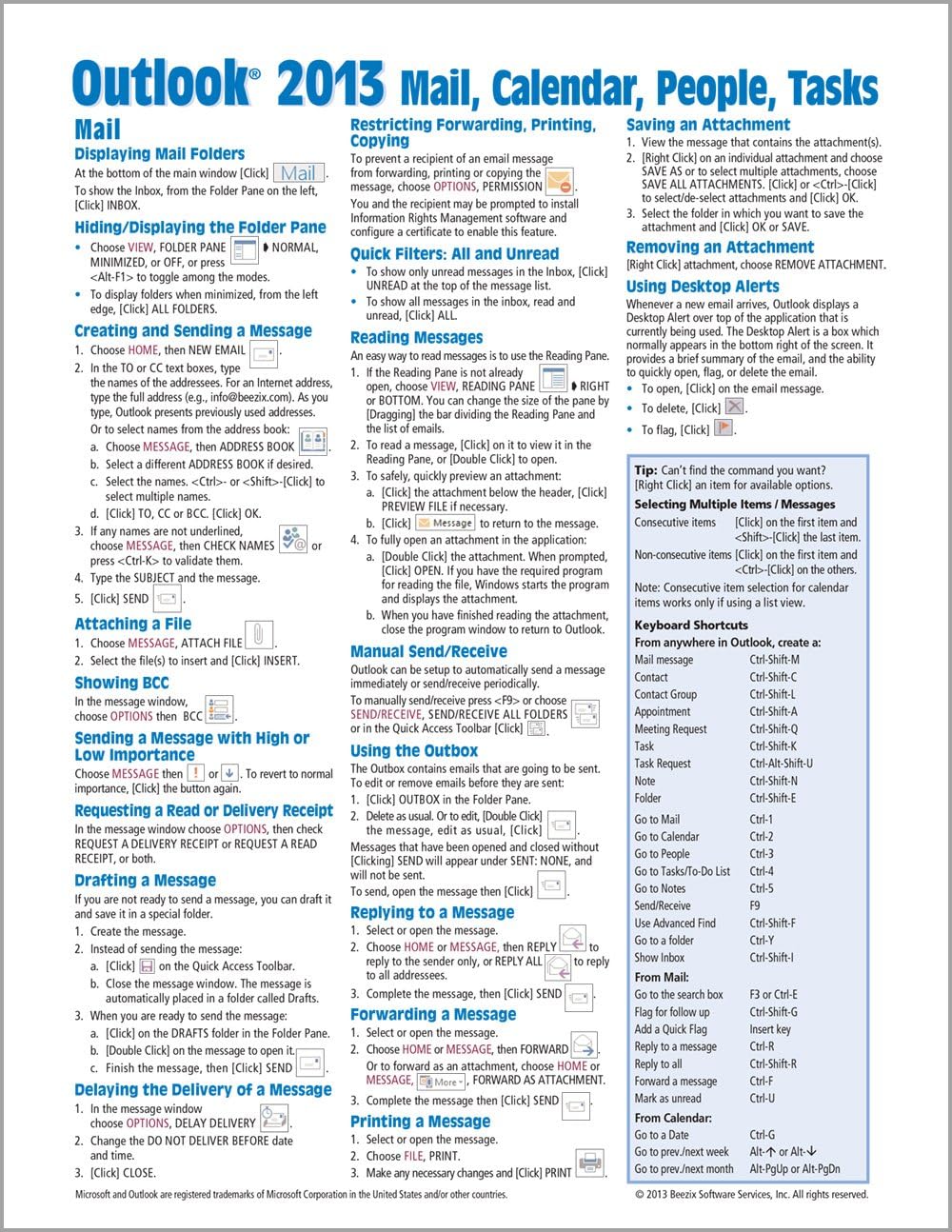
Microsoft Outlook 2013 Mail, Calendar, People, Tasks Quick Reference (Cheat Sheet of Instructions, Tips & Shortcuts - Laminated Guide)
Product ID: 717767
4-page laminated quick reference guide showing step-by-step instructions and shortcuts for how to use mail, calendar, contacts, and tasks features of Microsoft Office Outlook 2013. This guide is suitable as a training handout, or simply an easy to use reference guide, for any type of user. The following topics are covered: Mail: Displaying Mail Folders; Hiding/Displaying: Folder Pane & To-Do Bar; Creating and Sending a Message; Attaching a File to a Message; Showing BCC; Sending a Message with High or Low Importance; Requesting a Read or Delivery Receipt; Drafting a Message; Delaying the Delivery of a Message; Restricting Forwarding, Printing or Copying. Quick Filters: All and Unread; Reading Messages; Using the People Pane; Manual Send/Receive; Using the Outbox; Using Desktop Alerts. Deleting Messages; Saving an Attachment; Removing an Attachment; Replying, Forwarding, Printing a Message. Sorting Messages; Grouping Messages by Conversation; Ignoring a Conversation; Cleaning up Redundant Messages; Turning Grouping On/Off; Finding Mail Messages; Using Task Flags; Creating a Folder; Favorite Folders; Moving or Copying Messages; Using Quick Steps; Creating a Contact from a Message; Creating a Distribution List; Creating an E-Mail Signature; Manually Inserting Signatures; Using the Rules Wizard. Using the Out of Office Assistant, Handling Junk Mail. Calendar: Setting up Your Work Week; Viewing the Calendar; Creating Appointments; Creating, Scheduling and Editing Meetings; Repeating Appointments or Meetings; Responding to Meeting Requests; Changing Time or Date of Meeting/Appointment; Viewing Multiple Calendars; Creating a Calendar Group; Printing the Calendar. People: Displaying People; Creating & Editing Contacts; Linking Contacts; Deleting a Contact; E-Mailing a Contact; Searching for People; Connecting to a Social Media Site; Viewing Social Media Updates; Merging with Contacts. Tasks and To-Do Items: Displaying To-Do and Task List Folders; Creating Tasks; Marking Complete; Adding Messages or Contacts to the To-Do List, Changing Task Order; Assigning Tasks; Viewing To-Do Items in the Calendar; Hiding /Displaying Tasks in the To-Do Bar; Printing Tasks For Any Outlook Item: Deleting Items; Assigning an Item to a Category; Sorting by Category; Sorting Items; Creating a New Calendar/Contact/Task Folder; Sharing Calendar Contacts Tasks or Notes using an Exchange Server; Using Another Person's Calendar Contacts Tasks or Notes Folder; Responding to a Sharing Request; Using the Reading Pane. Also includes a list of Keyboard and Selection Shortcuts. Review: It's a great cheat sheet to Outlook functions in case I forget. - I like a hard copy of instructions handy when I am working. This makes it so easy to refer without having to stop what I am doing. Get It!!!! Review: Great Cheat Sheets For Outlook Users! - Great Cheat Sheets For Outlook Users! Gave me information on how to set up my Outlook and use it in a way I wasn't before. Worth the $5 I spent.
| Best Sellers Rank | #6,617,317 in Books ( See Top 100 in Books ) #168 in Microsoft Outlook Guides #289 in E-mail (Books) #396,913 in Reference (Books) |
| Customer Reviews | 4.3 out of 5 stars 102 Reviews |
G**R
It's a great cheat sheet to Outlook functions in case I forget.
I like a hard copy of instructions handy when I am working. This makes it so easy to refer without having to stop what I am doing. Get It!!!!
J**.
Great Cheat Sheets For Outlook Users!
Great Cheat Sheets For Outlook Users! Gave me information on how to set up my Outlook and use it in a way I wasn't before. Worth the $5 I spent.
F**S
Good Reference Sheet
I bought these for our office when we upgraded to Office 2013. They work well for keyboard shortcuts and the like, but a lot of our "issues" were things that involved settings, which the cheatsheet wasn't as helpful in solving. I do still have readily handy so I can look up quick shortcuts, and I have seen other co-workers referring to them.
R**.
Great for beginners and intermediate users.
Great for beginners and intermediate users. Some new stuff I learned and for the items that I already knew about it is great practice to learn where everything is at on my Surface Pro 2, using Microsoft Office 365. Going from Office 2003 and 2007 to 2013 Office 365 can be a shock for some. Because it doesn't cost that much I felt it was worth it for me. Obviously for those of you who have more experience you shouldn't even be looking at this page.
P**Y
I love these "cheat sheets" !
I've used these before, with Office 2007 and they're very useful. If you need some info you don't have to go looking through the textbook. Most of the things you need are right in there, even shortcuts. These are MOST recommended; I bought all three sheets - Excel, Outlook and Word.
P**S
I would recommend these in a minute
I am very new to using Outlook. This item has helped me tremendously. I refer back to it frequently. I have purchased many of these for using various items on my computer. I would recommend these in a minute.
J**M
So they cut lose Outlook, what do we need for guidance?
It isn't a bust, nor is it really great, but it serves the purpose of keeping the notes at a finger tip in order to find some sort of answers to this program. I have had the 2003 upgrading to the 2007 when I found out that Microsoft wanted to stretch their income by cutting lose Outlook. This means that the program had to be upgraded from that which was a characteristic of Office. I just did not want to purchase another "bible." So, this will have to suffice.
A**R
Good summary for Outlook
Covers all I need
C**E
Shortcuts
Short cuts at your fingertips...but beware it is techie written.
J**T
Five Stars
Used a number of times for ref.
B**R
Very Helpful
This card was a great help when I changed jobs and was required to use Office much more extensively than I had in my personal life. The reference sheet was very helpful with useful information but not overly in depth. It answered many wimple questions so I did not have to bother my co-workers. Sometimes the on-line help is not overly helpful.
Trustpilot
5 days ago
2 months ago