Buy anything from 5,000+ international stores. One checkout price. No surprise fees. Join 2M+ shoppers on Desertcart.
Desertcart purchases this item on your behalf and handles shipping, customs, and support to Indonesia.
🎨 Dial into your creative flow — shortcut mastery in the palm of your hand!
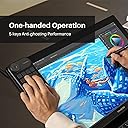
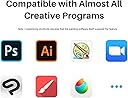
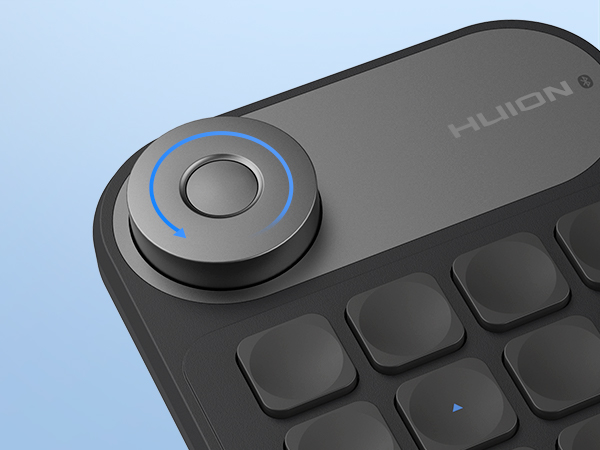
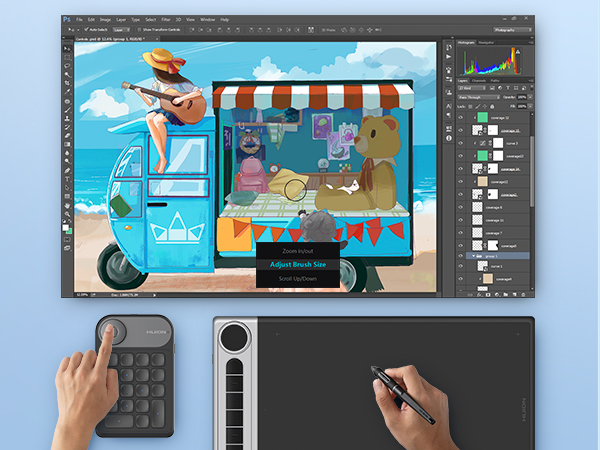
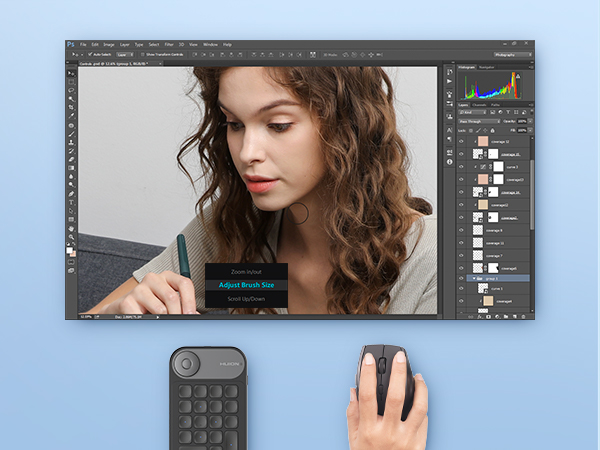
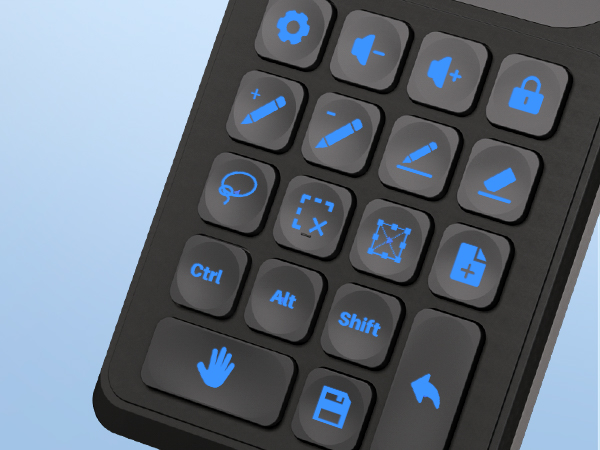
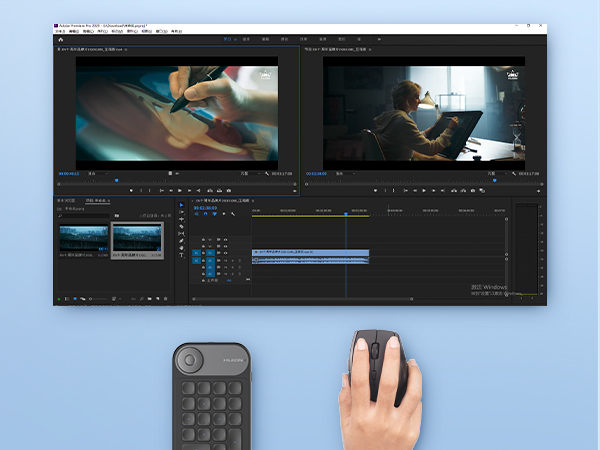
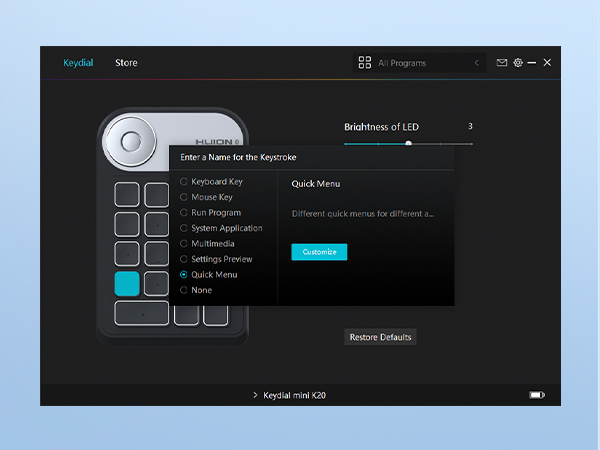
The HUION Keydial Mini is a sleek, Bluetooth 5.0-enabled programmable keypad featuring 18 customizable keys and a multi-function dial with 3 modes. Designed for digital artists and professionals, it offers anti-ghosting technology, a 70-hour battery life, and broad compatibility with Mac, Windows, and major creative software. Its portable, ambidextrous design and intuitive shortcut preview system make it an essential tool to streamline workflows and boost productivity.


| ASIN | B0BQJMPYDX |
| Additional Features | 18 Customized Shortcut Keys, 5-Keys Anti-ghosting, Bluetooth 5.0 Connection, One-handed Operation, Programmable Dial |
| Antenna Location | Digital Drawing, Everyday Use, Gaming, Graphic Design, Multimedia, Photo Editing, Programming, Video Editing |
| Best Sellers Rank | #136 in Computer Keyboards |
| Brand | HUION |
| Built-In Media | HUION Keydial Mini Bluetooth Programmable Keypad, Quick Guide, Stickers, USB Cable |
| Button Quantity | 18 |
| Color | Black |
| Compatible Devices | Drawing Tablets, Laptop, PC |
| Compatible Operating System Family | Windows |
| Connectivity Technology | Bluetooth |
| Customer Reviews | 4.2 out of 5 stars 588 Reviews |
| Enclosure Material | Acrylonitrile Butadiene Styrene |
| Generation | 2nd Generation |
| Hand Orientation | Ambidextrous |
| Is Electric | Yes |
| Item Dimensions L x W x H | 5.74"L x 3.65"W x 0.42"H |
| Item Type Name | Computer Graphics Tablet Accessories |
| Item Weight | 0.26 Pounds |
| Keyboard Backlighting Color Support | Single Color |
| Keyboard Description | Digial Painting, Image/Video Editing, Gaming |
| Keyboard Layout | QWERTY |
| Manufacturer | Shenzhen Huion Animation Technology LTD. |
| Mechanical Keyboard Switch Model | Scissor-Switch |
| Minimum Required Operating System Version | Mac OS 10.12 Sierra, Windows 7 |
| Model Name | Mini KeyDial |
| Model Number | K20 |
| Number of Batteries Required | 1 |
| Number of Keys | 18 |
| Number of Sections | 1 |
| Power Source | Battery Powered |
| Recommended Uses For Product | Digital Drawing, Everyday Use, Gaming, Graphic Design, Multimedia, Photo Editing, Programming, Video Editing Recommended Uses For Product Digital Drawing, Everyday Use, Gaming, Graphic Design, Multimedia, Photo Editing, Programming, Video Editing See more |
| Series Number | 20 |
| Special Feature | 18 Customized Shortcut Keys, 5-Keys Anti-ghosting, Bluetooth 5.0 Connection, One-handed Operation, Programmable Dial Special Feature 18 Customized Shortcut Keys, 5-Keys Anti-ghosting, Bluetooth 5.0 Connection, One-handed Operation, Programmable Dial See more |
| Style Name | Bluetooth |
| Switch Type | Clicky or Tactile |
| Theme | Drawing, Gaming, Photo Editing, Video Editing |
| Unit Count | 1.0 Count |
| Warranty Description | 1 year warranty from the purchase date |
K**Z
WORKS GREAT For WACOMS! Can be BLUETOOTH and WIRE CONNECTED! Scroll Dial Offers 3 Hotkey Mode!
I know my headline is kinda crazy sounding (and a little AI-ish,) but I AM a real (very excited) person, and I'm SO thrilled with this little hotkey pad. XD I just wanted to put answers to questions I couldn't find answers to in my headline, just in case it's helpful to others lol! I've also tried to leave a comprehensive but concise thoughts on my experience with the keypad for any fellow visual artists (especially those using larger-scale drawing tablets) WHY I NEEDED IT I currently use a WACOM Cintiq 22" (without "touch" capabilities), and trying to access my hot keys on my desktop keyboard was a nightmare. It made it uncomfortable, and deterred me from drawing. I found this little guy with a lot of great reviews, and had also heard enough positive buzz about Huion over the years that I gave it a try. It took a while to arrive, so just be ready for a wait. However, once it DID arrive, it has blown all of my hopes and expectations out of the water. FIRST IMPRESSIONS - Battery was already 90% charged - Downloading the driver was very easy and fast - Setting up the hot keys was incredibly easy and flexible - It comes with 2 sets of sticker labels so you can keep track of your hot keys - It has nice little rubber grips on the bottom so it doesn't slide all over the screen - It comes with a nice 3-ish foot USB cable so you don't HAVE to use bluetooth if you don't have it. I also think the cable is long enough that it doesn't get TOO in the way when you're drawing, either. MY FAV ASPECTS (So Far) 1. I LOVE that the dial lets you set THREE different hot key settings simultaneously. I currently use "zoom in/out" and "canvas rotate". All you have to do is click the little button in the middle of the dial to switch between your desired "hot key mode". It's beyond convenient and comfortable for my hand. 2. Super big fan of the bluetooth and wire connect options, and how the wire is long enough that it wont really impede your ability to draw or strain the connection. 3. It's very light, and comfortable to use. While it has nice rubber grips, they aren't "too much" so you're not smudging your screen, but as long as your hand is on the device, it isn't sliding everywhere, either. 4. Set up was incredibly straightforward and easy, and I loved how it offered program-specific key menus (like Clip Studio Paint and Photoshop). FINAL THOUGHTS I know it's just a hot key pad, but it has totally changed my workflow, and I'm much more excited and motivated to draw because I'm way more comfortable and efficient. I'm really impressed with the extra details like the stickers and USB cable that improve the user experience. I'm also really impressed that it functions SO seamlessly with my Wacom. A part of me had really worried that it WOULDN'T work so great since HUION sells their OWN line of drawing tablets--but it's working great. I've only been using it for a few days, so if it suddenly stops working or something, I'll update my review then. But, for fellow visual artists looking for a simple but effective hot key pad to make work more comfortable and efficient, I am REALLY pleased with the purchase, and highly recommend. ^_^
D**A
Pros and Cons ⬇️ I love it!!💕
I am a photographer, I like to work with a stylus pen and my windows surface pro screen comes up and covers the keyboard when I work with the pen as you can see, so this is PERFECT, I can still access shortcuts quickly while I am using my pen. I love it!! And the stickers 😍 wish there were more photoshop icons but this is great! Pros - Easy to set up and program - Connects AUTOMATICALLY to your computer when you turn it on (like 3 seconds) - You can set it up separately for each program you use (including document folders) - Keys are soft and super easy to click(I use my pen to click sometimes) - Color coded stickers make it easy to find keys - Works smoothly, no lag 🙏 - Intuitive experience all around, physically and set up/program wise Cons - Wish it was a bit smaller so I could more easily hold it with one hand for certain situations - Wish it had a couple more photoshop stickers like "crop" and "liquify" Other than that it's lovely and I am super excited about it!
R**X
It’s perfect-ish!
I’d like to first mention that this thing is wonderful, I’m just very picky about these kinds of gadgets. I’m an artist as well as just someone who uses a lot of hotkeys. But I’m also a penny pincher. So, if I’m paying this much for essentially a fancy numpad with bluetooth I’m going in expecting much from it. Pros - It comes with cute little stickers for you to put on your keys just for a visual aid of what you mapped, there’s also blank stickers so you can remember by color or draw on them instead. - The dial is unbelievably satisfying. When it’s not connected sometimes I just play with it, listening and feeling it clicking in my hand. Oh and it works real good, too. - I love that you can map so much to one key. Media controls, windows tasks like opening a program, etc. It’s like a little numpad but instead of useless numbers it’s riddled with a buncha hotkeys. - The scissor keys are wonderful to press and since they’re so small it’s hard for dust or any debris to get under them. - The USB C charging is very fast of course and even in a nice L shape so it isn’t sticking out and getting in the way. Cons - It CANNOT use the F13-F24 keys. There was a post about it a year ago on their own forum and even acknowledged by support but they have still yet to implement them. Huge dealbreaker for a weirdo like me. - For iPad users, I have tried it out with their app and despite the rude reviews the app works just fine but the dial no longer functions as it does on PC. It cannot cycle through Brush Size, Zoom and Scroll. You could map the dial to do one of those though, just make the increase clockwise and decrease counterclockwise. 100% sure this is because of Apple’s amazing software but it’s still annoying nonetheless. - Setup was very very very annoying. There’s nothing here or in the box that tells you where you download the drivers or even how to do so. Then when you do find them, the instructions are so unclear I almost thought I bricked mine when it wouldn’t turn back on during the firmware update. THEN in order to remap anything I figured out I had to install their tablet program. ??? Why? - I want more keeeys. (Me problem) - I want more cute stickers, I don’t even use half of the ones they give you. (Me problem, you could easily imagine other symbols meaning something else or use the blank colored ones to memorize any functions by color.) Overall, it’s perfect if you don’t need too many keys and just want something to easily map certain keybinds to. The keys and the dial certainly help with any workflow unless you get distracted and end up spinning the wheel around for five minutes like me. 👍
T**Y
Works with Procreate
I gotta say I'm glad I didn't listen to the reviews that claimed this didn't work with Procreate. I'm using the Mini Keydial on my iPad Air with Procreate and it works perfectly. Mapping the buttons was super easy once I got the app for the device. I use the dial to change the brush size and it's so convenient. Procreate doesn't have a ton of shortcuts. Most gestures but it's definitely made my work flow a little smoother and I feel it's much easier to work with this than other key pads I've tried for procreate in the past. So, to summarize this will, in fact, work with your iPad and Procreate just fine. I don't have any issues at all and the build quality is great. It connected via bluetooth very quickly and connected automatically. I got it on sale for $40 and I'd say it's definitely worth that price.
L**U
Started Rough, but Excellent Customer Support Made the Difference (UPDATED)
I bought this about six months ago. At first, it worked really well, but after some time it started having issues. The scroll wheel began glitching when zooming in/out or scrolling, which made it very frustrating to use and affected my workflow. Update: After I posted my review, Customer Support reached out to get more details about my issue. They quickly identified that the problem was caused by a broken button and offered to replace the device with a new one. I really appreciate how responsive and helpful they were. I genuinely like this product, and I’m very pleased that my workflow is smooth again thanks to their support. Great customer service made all the difference.
R**R
Works but not very helpful if you are used to keyboard shortcuts
To summarize, this feels light/economical but functions, howeve do you really want to learn all new keybinds? I'd rather use a standard keyboard along with a small device that only has dials and is smaller so it doesn't cover useful screen. Full review: After trying this for a while it never became convenient. Maybe I'm too used to using keyboard shortcuts and don't want to try to relearn new hotkeys and muscle memory of finger positions. I did like the dial for brush size, but clicking it to switch to another function was again a little too slow compared to a separate key binding on a keyboard. Honestly what would be most helpful to me from a device like this would be just having 3 dials (no keys) that you can attach to the edge of a display tablet (one for brush size, opacity, maybe zoom.) Bonus if they click for an alternate function. If it were to have other keys, I feel it would be best to just have a standard keyboard layout, just cut off to only include the left side of the keyboard up to about the f key. The keys need to have a familiar and easy to find home position without needing to look at the device. This does come with stickers with various icons to put on keys to remind you what buttons are set as, but if you're stopping to look at the buttons it's already slowing you down a ton instead of helping. Maybe if the buttons were laid out and shaped more like a keyboard (at least shift, ctrl, alt, space) I could have stuck with this, but I think years of using a keyboard is just too much to relearn for no real benefit. I guess the advantage of this is you could set this directly on the display tablet screen, but even on a large 22" with a large bezel (Kamvas 22 plus) this covers up a lot of useful screen. The back is just barely grippy enough that it usually won't slip, but that could be better. In the end I mounted the display on an arm and have a Bluetooth keyboard on the desk underneath it rather than use this Huion keydial. Other notes: this is lightweight, overall everything about it feels economical, but functional. Waking from auto sleep mode can take a little bit but not a big deal. You can set auto sleep time out in the software. Setting button keybinds in the software works fine.
M**T
For the newer K40, not worth it. K20 not bad, but the dial will die in about a year of use.
(edit): Okay so ivve had the K20 since June of 2024 and the dial went bad but the buttons still worked. Was plagued however by the drivers always failing to detect the keypad. the driver never give me issues with my Kamvas 24 but my god do they hate the keypad. So dealing with that for a while I think man I'll upgrade Ill get the newer one. ans so I get it over the holidays as a gift. Firstly the rubber backing for grip is very slick and does little to grip my desk. Secondly this one still suffers from the drivers refusing to detect it. and it doesnt matter how many digital buttons it has, they will be the default binds if the drivers dont detect it because it has no onboard memory. none at all how in this modern age are there still customizable peripherals with no onboard memory? Like I wounlt care so much if there drivers EVER detected it firrst try but it doesnt. Thirdly this one has come with a new issue the K20 didnt have, which is it regularly provides false imputs. either keeping the last imput it was given for a second or two or outright ignoring the most recent imput. wich if youre using a program with toolshift like I am is a nightmare. Fourthly. the ergonomics just doesnt do it for me. I find the K20 easier to use. and on that, * programable buttons at a time is simply not enough. My workspace doesnt provide enough room for my drawing setup and an easily accessed keyboard. so I try to use binds as best I can to prevent me from having to awkwardly try tp scoot a keyboard out to use binds. and the fact it takes a secodn to switch bettween digital button sets is just agrivating for my workflow. Pros: the made it easier to actually set your binds the dials feel nice and accurate the buttons it does have, each have little tactile feature to differintiate them without looking. Conclusion. don't. just dont get this one. go with a different brand for your macros. make sure if it is also driver dependant it wont conflict with your device or program. Really let down by this.
J**S
Works great with my iPad+Procreate
Loving the Keydial K20 so far! Reasons why I landed on it: 1. I've been using Procreate on my 2018 iPad almost exclusively as of late, and this seems to work fine out of the box. 2. I also own a Huion Kamvas Pro 16 and assumed the two would work well together 3. I like the aesthetics and small footprint After 1 hour of using it: 1. Build: It's plastic, lightweight, and clean. Some may prefer a heavier metallic build > doesn't bother me. The buttons feel tactile. The dial has "clicky" increments, also doesn't bother me. 2. Huion Keydial iOS app: Like others have said, the app has terrible reviews but everything seems fine. It supports many app presets out of the box: Procreate, Adobe apps, Affinity apps, Clip Studio Paint, Artstudio Pro, just to name a few. If you don't find a specific app or preset for it, you can always assign your own hotkey combo. 3. Center Dial Button: My only gripe so far is the lack of "dial function switching" via the center dial button, which I've seen others say you can access on the desktop apps. Maybe I'm missing something in the app? If it indeed does not exist, this seems like a software issue and could easily be rectified with an app update by Huion. 4. Procreate: I've seen people in other forums/subreddits complain that feature-x is not available for mapping, and this isn't specific to the K20. It might just mean the app developers have not yet exposed that function through their API. To see what Procreate allows for keyboard mapping, map just the "command" key. Then while in Procreate press+hold that command key to reveal a contextual menu of available/mappable functions. I for one wish brush opacity was available. I understand you can do this directly with the virtual slider in Procreate, but I'm trying to focus all my off-hand movements to a keyboard accessory. 5. Icon stickers: I appreciate the stickers they include, but I'll probably print my own based on my personalization and needs. 6. Positioning: I draw with my left hand and use my right hand to control the K20. Just a personal preference and not a gripe > I prefer using this in a horizontal position (dial at the bottom left corner). Since you can map and customize the keys however you want, this is not an issue. I'll eventually get to using this on my desktop setup. Nice job Huion!
T**A
Surprisingly good.
A nice side keyboard with fully mappable keys - a sequence of keystrokes can be mapped to one button. Jog dial is very handy, however rather small. One thing I noticed was inconsistent jog speed when used within the web browser - the page scroll was ok, but an overflowing element on the page scrolled extremely slow, while scrolling with a mouse dial behaved consistently. The device is well worth the price.
L**V
atajos de teclado barato
si quieren arreglar la rueda solo necesitan desarmar el mando para quitar el anillo de cobre y doblar la punta un poco mas y si no me entienden solo busquen el nombre del producto en youtube y allí aparece como hacerlo no se necesita desarmador
C**R
Bien
Esta bien, llego bien.
S**A
Perfect accessory
I use it with my kamvas 24 and it helps me draw faster. But you cannot use key combinations when drawing and it sometimes disconnects from the drawing tablet
K**Z
Fallos de diseño
Tiene fallos de diseño de fábrica, la rueda dual tiende a tener fallos al girar a la primera semana ya tenía a romperce, busqué si era solo mi unidad pero es un fallo común
Trustpilot
1 month ago
1 month ago