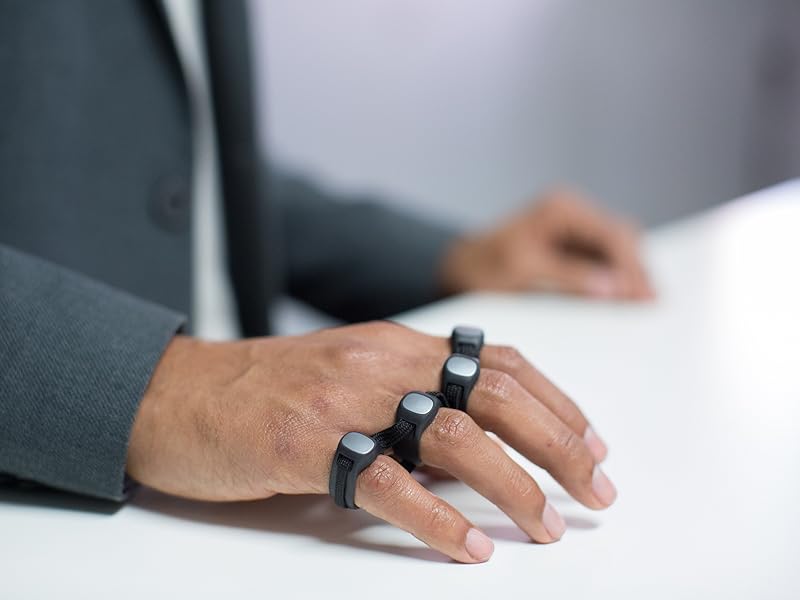
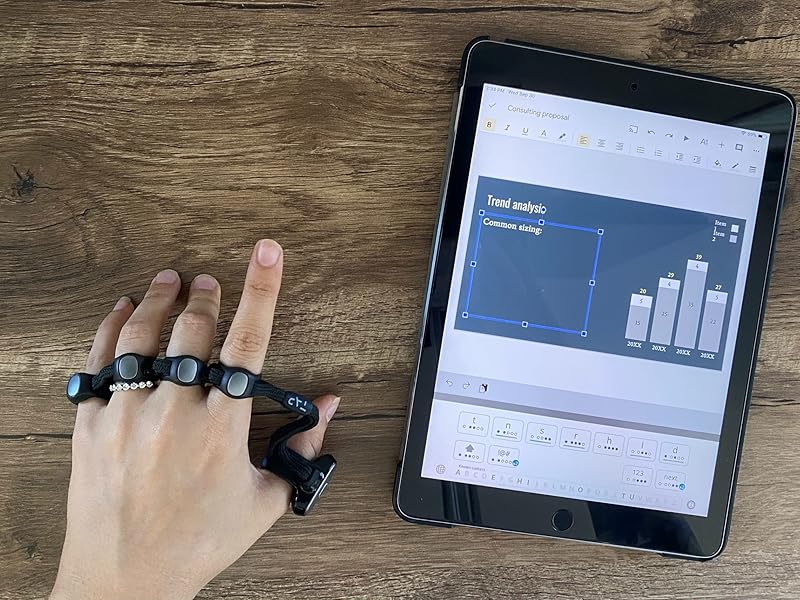
⌨️ Tap into the future of hands-free productivity—wear your keyboard, own your workflow!
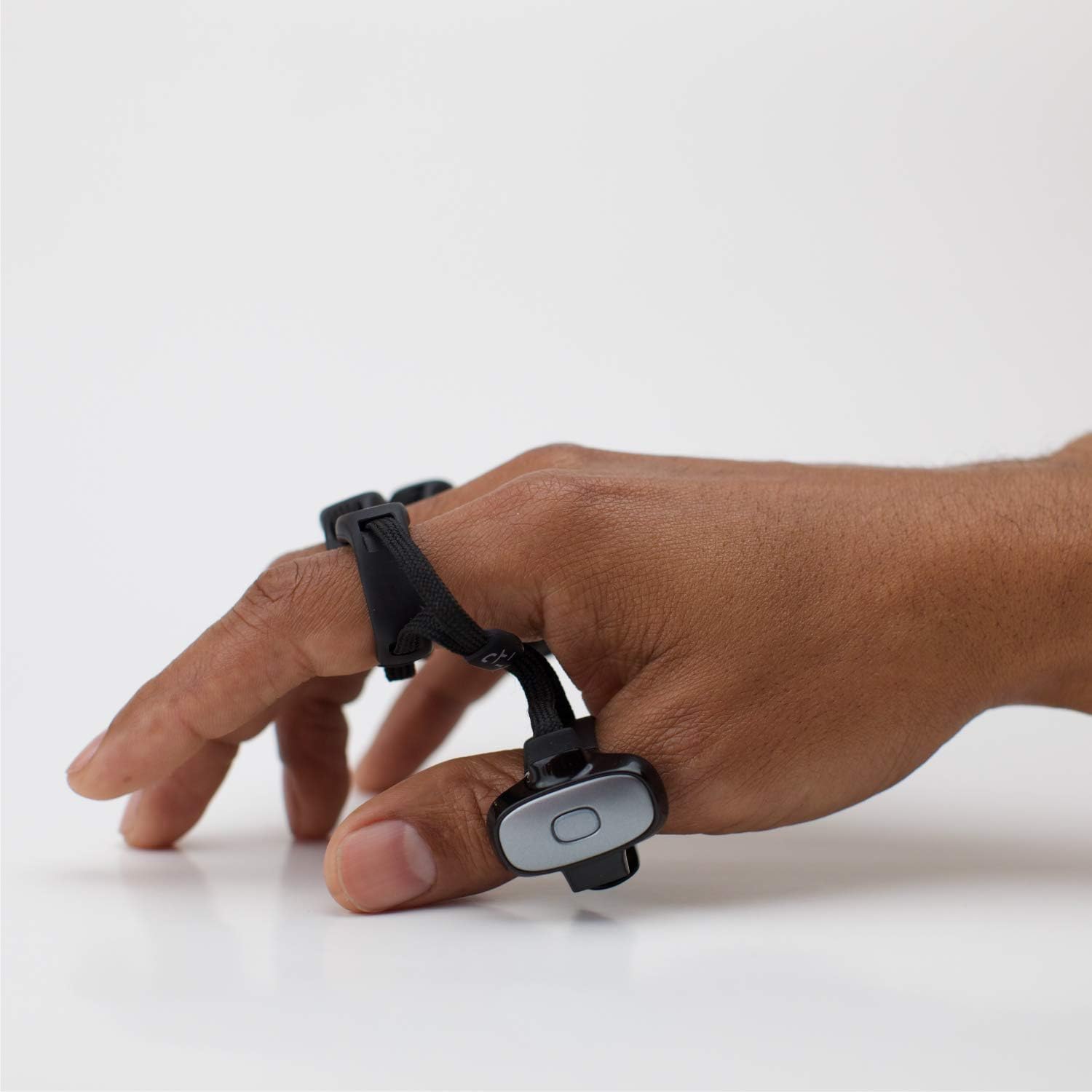
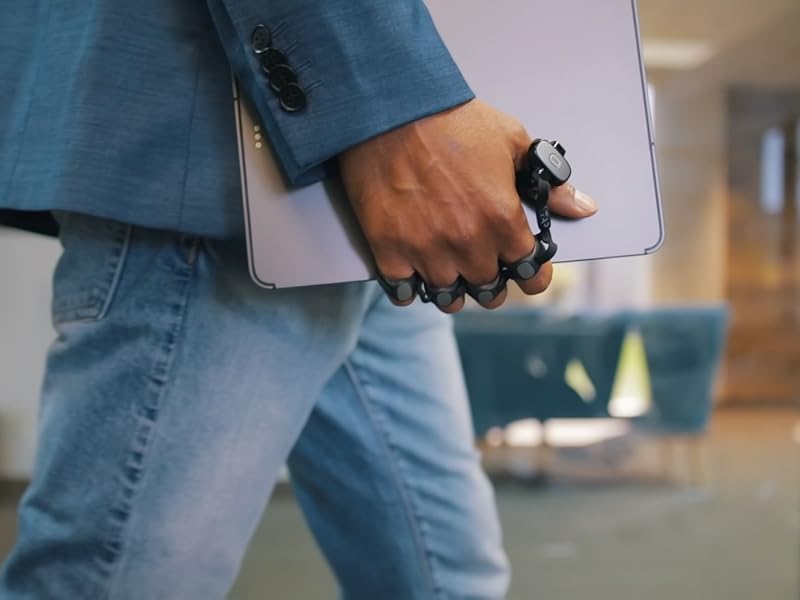
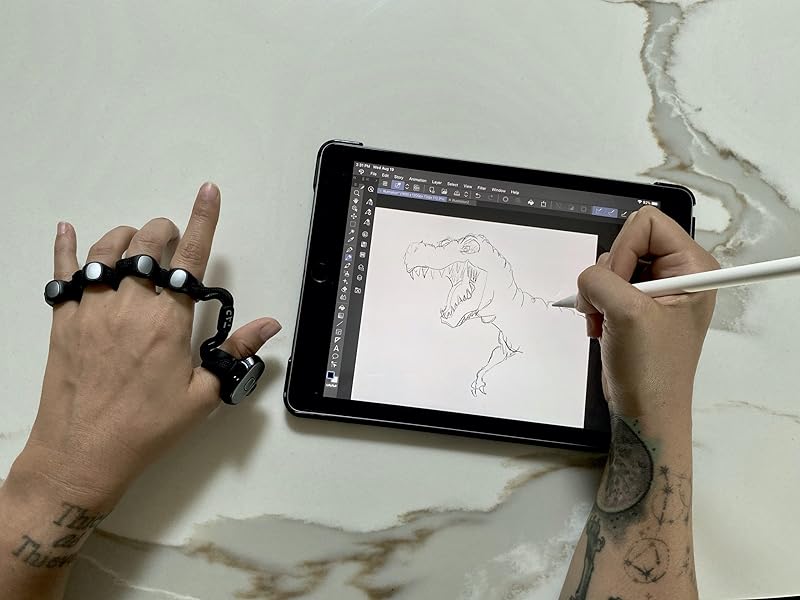
The Tap Strap 2 is a cutting-edge wearable device that transforms your hand taps into keyboard, mouse, and air gesture inputs. Compatible with a wide range of devices including VR/AR headsets, smartphones, tablets, PCs, and smart TVs, it supports multiple languages and offers full ambidextrous use. With customizable tap mappings and plug-and-play ease, it’s designed for professionals seeking a sleek, portable, and innovative way to interact with technology on the go.


| ASIN | B09C2K7L73 |
| Batteries | 1 Lithium Ion batteries required. (included) |
| Best Sellers Rank | #888 in Computer Keyboard & Mouse Combos #1,390 in Tablet Keyboard Cases |
| Brand | TAPWITHUS |
| Color | Black |
| Customer Reviews | 3.6 3.6 out of 5 stars (1,070) |
| Date First Available | March 18, 2020 |
| Item Weight | 10.2 ounces |
| Item model number | 1 |
| Manufacturer | Tap Systems, Inc. |
| Operating System | Android, Chrome OS, Linux, Mac OS 9, iOS |
| Package Dimensions | 7.68 x 3.19 x 2.64 inches |
| Power Source | Battery Powered |
J**Y
Learning faster than I anticipated.
I got my TAP Strap 2 in today and started with the tutorials. I was surprised how fast I started to pick up the 'taps'. I worked through the first couple sets quickly, the tutorial/practice allows you to repeat the practice sessions as often as you like. It rates you by 1,2 or 3 stars, based on your aptitude. I repeated the ones I had only 2 stars on and others that I didn't feel comfortable with. Each practice set incorporates some of the letters from the previous one and you 'earn' special characters when you show more proficiency on a set, so you get period, space, comma, and start learning those regularly used characters very quickly. For anyone concerned about the size, I did find in one of the Q&A a tip to fold a dollar bill in half and if your hand width was smaller than the bill to get the small version. I had measured the width and thought I was right at the 3" mark, so I couldn't make up my mind. When I tried the dollar trick, I decided to go with the small size and it's just right. There is room for me to loosen the strap if I need to. I think the large would have been too big. I was having a little trouble with certain letters at first. I think I was holding my fingers too close together. I found that by spreading them out a bit more, for letters like C, I was able to get a clear tap. I am definitely using the shortcuts for v, and j. Can't make up my mind about z LOL. I'm looking forward to continuing the tutorial and at least getting the rest of the alphabet so I can start working on speed. Oh, I started practicing on my computer, then paired my iPad and did the air tutorial. The left click is giving me some trouble, I don't think I'm keeping my hand in the right position. Not sure I'll use the swiping feature much, as I was more interested in the typing without a keyboard for the iPad. So far, 5 stars. I'll try to update my progress.
T**K
What a let down
I was very excited to get my hands on the tap strap 2, but every step of the process is riddled with unreliable apps, annoying settings, and ergonomics that are out performed by an Adzerd Smart Ring for 20 bucks. Starting with the app, the app is by far the worst part of this experience as it disconnects frequently, and once disconnected you must either completely clear the app data from your device or you uninstall and reinstall it to reestablish connection. And you NEED the app to change your settings, which are also compromised. The settings allow you to configure multiple presets and switch between them witch is nice as it is just a wearable keyboard and mouse on your hands. But the device is soo sensitive that inputs will execute accidentally frequently. This can be mitigated by setting all commands to 2 - 3 taps, but not only can the switch commands not be switched as they are locked by the manufacturer, but they are also 1 tap. Meaning you might accidentally switch your settings and have to constantly try to set them back to your custom configuration. Ultimately i expected this device to allow me to multitask and execute commands while my hands are occupied, but if you don't have a stable surface to tap or something in your hand, the tap accuracy significantly drops, and you won't be able to instinctively operate this device without having to troubleshoot every time you use it. Again the Adzerd ring is what i wanted this device to replace. Its accurate, doesn't need an app or presets, doesn't need a specific surface to operate and can be used even while typing. I'm turning my music on and scrolling through tiktok as i type this, yea good luck doing that with the tap strap 2. Also the mouse feature is clunky and annoying to use too, but of course it is lol.
J**Y
Hard to learn, needs surface like youd have a keyboard on anyways.
I'll start with a quick positive, this is the most portable keyboard and mouse you can find. This is not an air keyboard by any means which I still somehow thought after watching a few videos, that's on me. This dramatically ruins the AR experience. You need a hard flat surface like a desk to use this on. If you're going to have a surface you might as well have a keyboard and mouse in most cases. If you had only one usable hand (or needed to free up one) this might be neat. That's the only circumstance I can see. However, you'd still likely be better off with a keyboard and mouse operated with one hand, even switching between the two...unless you're mobile! (You'll still need to find a surface to tap on) I don't often use my phone with still fixed ergononical surfaces, so it's useless there; and I always use my computers with still surfaces, where there are far more positives to a keyboard and mouse. The air mouse is impossible to use, as to click you move your wrist which is also how you move the pointer. The surface mouse is pretty cool, but requires more cooridination than a regular mouse, as your thumb indepentdantly is the x,y input. Your cursor/thumb is prone to move (not unlike in air mouse mode) when you move any of your other fingers to click, as your hand is all well connected together, unless you keep consistent pressure down on your thumb. This get tiring quickly, unlike a mouse meant to let your hand rest precisely a-top, not moving when you lift your hand or click a button. If you could disengage the mouse movement from your hand before clicking with an extra gesture it might work, but then you've gotta do multiple gesture to click once... Still works alright as a one handed keyboard once you learn it, with surprising accuracy (still less convenient then typing with one hand with fixed position hard keys if you can have space for a keyboard.) Other than for fun, there's just no real point in learning a less accurate, slower, less convenient device. It's a step in the right direction, but there's a few miles to go. Inputs devices can only be made better with consistency/accuracy#1, memorability/speed#2, ergonmics#3, features#4(extra function(fn) or macro buttons),Style#5 This device hits misses #1 Might actually win number #2 if I spent enough time (as I already know how to type, comparitively) Is uncomfortable after short term use so likely missing #3 for most people (experience may vary) #4 Has a world of possiblities if they provision the right type of macro software with a slick interace, not fully applicable yet #5 Looks Awesome, you could wear this around anywhere in this day and age and it would inspire only curiosity, it's very exciting product. (too bad it doesnt work just anywhere you want i.e. walking, at least just yet)
A**ー
キーボード機能は見ずにマウス機能を目当てで買ったのですがマウスの反応が非常に悪く結局マウスパッドの上くらいでしかまともに反応せずエアマウス機能はジェスチャーの設定が頭悪いとしか言えずクリック操作に手をフリップするのだが当然親指に連動してるマウスポインタも一緒に動く、一応キーボードも使ってみたが中指と人差し指は人体の構造上一緒に動きやすく誤動作を連発する
K**R
Although the delivery was delayed, communication from seller was very proper and product is very good.
へ**ん
・PCの電源を入れるびに、手動でブルーtースの接続をやり直さないといけないのがとても不便 ・英語の説明しかない ・入力の精度は低い。Aと入力してるのに、ZやCがでる。 ・カスタム性は極めて低い。F5キーを割り当てられない、(ブラウ座上のキーマップカスタム画面が、F5を押すと更新されるので、割り当てようとしても設定を保存できない。)のような、できそうでできない落とし穴みたいなことが多々起こる。 ・マウスのホイールボタンのクリック、に該当する操作が見当たらない ・マウスのクリック長押しができない(ドラッグはできるが、指を放してもドラッグが解除されないので、”ドラッグーをやめる”を入力する必要がある、これは求めてた感じと違う) ・トリプルタップで電源が落ちる操作を不能にできないんで、自分はそのキーを連打する操作が多いので、勝手に電源が落ちる。電源が落ちたら、再度PCの設定でブルートゥース器機の削除、接続をやり直さないといけない。 ・PC上のユーティリティが欲しいが、ないので、トグル操作をおしてしまったりすると、PCに不慣れな人がNumLockを不用意に押してしまって元に戻せなくなってパニック…のような状況になりやすい。 ゲーミングマウスやコントローラーにありがちなユーティリティドライバは、欲しかった。 ・設定がうまくできてないのか、自分の操作が間違っているのか、判別できない。 ・マウスモードでの、ポインタの速さや加速度を変えられないのがとても不便。 ・上述の内容のうち、実はできますよ、みたいなことが慣れてるひとにならわかるかのもしれないですが、 説明書などが何もないので、自分にはできませんでした。とにかく、使い方がわかりづらいです。 ・日本語で、紙に印刷されたマニュアルを付けてほしいです。
T**E
TLDR: You can type on a keyboard and move a mouse using gestures via sensors only you can't see either of them. Keyboard can make sense if you had one for both hands, otherwise I'm confused. Mouse function is pretty much a gimmick. It's not a hands-free mouse, you still need a surface to use it. You can map gestures via the app supposedly - I havn't tested the app. If you want a wireless mouse option just buy a bluetooth mouse and keyboard combo. A few of those keyboards can fold up nowadays as well. ------------------ My initial idea was to use this alongside a Vufine display so I could use a keyboard and mouse function hands-free. The Tap-Strap overall feels good. It's lightweight and responsive just it takes time to get used to. There is supposedly an application you can download for it. I didn't download it myself but you're supposedly able to remap the functions of the sensors and create shortcuts depending on the task. The mouse system is a thumb sensor you have to move atop a surface to use. Ideally you're supposed to move your hand as if you were holding a mouse. In practice I just don't thing it's a good system. I would have preferred a thumb-controlled ball or something else. I don't really know who this was designed for, to be honest. I guess the gesture control works fine for keyboards. I just feel the system is too bare for what it's aiming to solve.
Trustpilot
1 month ago
1 month ago