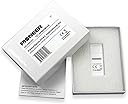
🌍 Control your climate like a boss — anytime, anywhere!
The PIONEER Wi-Fi Remote Programming and Access Module transforms your Pioneer WYS Series heat pump into a smart, globally accessible HVAC powerhouse. Plugging into your system’s USB port, it leverages your home Wi-Fi and a free smartphone app to deliver seamless remote monitoring, programming, and multi-zone control. With 5 Gbps data transfer and compatibility across iOS, Android, and smart home platforms like Google Home, it’s the essential upgrade for millennial professionals who demand comfort, convenience, and cutting-edge connectivity.
| Brand | Pioneer |
| Color | White |
| Compatible Devices | Smartphone, Tablet |
| Customer Reviews | 4.4 out of 5 stars 389 Reviews |
| Data Link Protocol | USB |
| Data Transfer Rate | 5 Gigabits Per Second |
| Hardware Interface | USB |
A**N
Excellent and necessary for any _compatible_ split zone air conditioner
Although this lists as for the "Pioneer" multi-zone split air conditioners, the part number shown is what is referenced when I search for the Wi-Fi module for my Cooper and Hunter multi-split zone air conditioner. I purchased 5 of these modules for each of my 5 zones. I'm not sure why others have reported having such difficulty with installation of the units, and this was a concern prior to my purchase, but my installation went along without a hitch. Others have reported it being necessary to push the red activation button on the module 7 times in order to set the module into “self Access Point” activation mode, but this was not the case for me. I only had to press the red button one time to initiate the activation mode. For one of my zones I did have to unplug, and replug the module, then push the red activation button again, but after that it was fine. The installation was simple: 1. Scan the QR code in the app on the mobile device 2. Push the module button to activate 3. On the mobile device, join the module’s self-wireless AP mode 4. In the app finish adding the zone & naming it The ability to control your multi-zone split air conditioner over Wi-Fi is a must! Not only do you have the ability to control the units remotely via your mobile device, but you can also perform climate scheduling with the units, which is very important. A big thanks to the other commenter here who recommended using the “Media Air” app instead of the “NetHome Plus” app referenced in the installation guide to control the modules. The Media Air app is very similar to Net Home Plus, but it appears to give greater control over the units, especially the “timer on" and "timer off" functions, which can’t be found in the NetHome Plus app, as well as providing the ability to customize the “sleep curve” if you want to change it from default of raising/lower the temp 2 degrees every 2 hours for the first 4 hours, and off after 8. What is interesting is that both apps use the same access credentials. In other words, I was able to log into the Media Air app using the same login name and password I had created for the NetHome Plus app. I wasn’t expecting it, but since the apps look so similar, I tried it, and it worked. I highly recommend this module for each of your split A/C zone units as long as it’s listed as being compatible.
E**E
Works with Senville Mini-Splits & Google Home!!!
Had to write a review after all the trouble I've had with the provided Senville USB dongle... So if you're like me and you purchased a Senville "Amazon special" mini split (I purchased the "LETO" series) and you're reading this, my guess is you're really frustrated with connectivity issues with the dongle that came with the unit, and the app's inability to work with Google Home. Just do yourself a favor and get one of these. Setup was a breeze! -Make sure to unplug the unit or trip the circuit breaker for your mini split and keep it off for ~10 min to reset. -While you're waiting read through the instructions and download the "NetHome Plus" app and make an account. -Plug in this dongle and plug the unit back in or flip the circuit breaker on (don't press anything on the remote) -Press the "LED" button 7 times (quickly) in less than 10 seconds. If this isn't working yet it hasn't had enough time to reset. Make sure it's been off for 10 to possibly 30min depending on unit. -Turn on Bluetooth / network permissions on the app and follow instructions (I used Bluetooth to connect). Easy as that. Once the device is added, from there you can connect your "NetHome Plus" account to Google Home or Alexa (There's instructions under the "Me" tab of the "NetHome Plus" if you need guidance on that part). Rename your Mini Split to whatever you want and then you can use voice commands to turn it on/off and adjust the temperature. Note: I haven't tried Alexa as I don't use it. I also haven't tried the different modes on the remote via voice commands yet but will update this review in a few weeks of trying out. Should have bought one of these months ago! 🤦♂️
B**E
Works for me with wifi 6 and TMobile 5g home
Opened, read instructions, place module in designated place, downloaded app via qr code in Manuel and followed onscreen instruction. Took me two tries to get it to work. I am using TMobile 5g home internet with wifi 6 router. No problem. Docked one star bacause of crappy Alexa integration. Meaning Alexa skill is not working yet. Update I was able to get Alexa to work. Don't use auto logon with the AC's app. Creat a new long in and password. The use that when enabling Alexa skill. If you use the Twitter or Facebook auto long in then you won't be able to use Alexa skill. Also I was able to use thermometer on echo to turn HVAC off and on automatically with Alexa routines. Which is not a feature my mini split supports natively.
A**W
Having the ability to adjust the thermostat on phone is amazing
We split time between two homes and we need a way to adjust the temperature in our weekend home. We found it was always hot inside when we got there and leaving the AC running when we leave would just drive up the electric bill. This was amazing because it always me to adjust the temperature from my phone. It was very easy to connect and the savings from electric bill made this the best value purchase.
D**Y
Ignore the negative reviews and just follow THESE instructions!
This item has some pretty awkward instructions provided by the manufacturer. I followed the included instructions as well as the ones by Amazon reviewer "Ubachukwu O" I am copying his instructions below, while clarifying/simplifying a few things for you. Step 1: Turn off the power to your AC unit at the breaker. Plug this USB device into the USB port on the inner lid of your AC unit (part that is INSIDE your home). You do not need to remove any other covers, just lift the lid, it's towards the left hand side of the flap that opens (probably above your head as the flap is open). Step 2: Restore power by turning the breaker back on. Step 3: Using your handheld remote that came with the AC unit, power the unit on. Press the LED/Follow Me button (bottom right corner of the remote) 7 times. Each time you should hear a beep. If it doesn't beep keep pressing. You should hear 7 beeps, and each time the LED on the unit that displays the temperature will turn off or on. On beep 7, it will display "AP" instead of the temperature, and start flashing. Step 4: Place 1 QR Code sticker (my wifi unit came with 3 of these, all identical) on the AC unit, somewhere that is easy for you to take a picture or scan the barcode. Step 5: Download the app "NETHOME Plus" on Iphone or Android phone Step 6: Launch app and follow prompts. Tap "add device". You will be asked to create an account, then scan an the QR code sticker you placed on the unit. Once the picture is captured, you will go to another screen that is telling you to change your wifi settings ON YOUR MOBILE DEVICE. In other words, its asking you to leave the app open, but subsequently open up your wifi settings on your phone and connect to net_ac... (something like that). The password and exact ssid are provided to you in the instructions that came with the wifi module. Once connected, you will be prompted to configure the AC unit wifi, as in...which wireless router the AC unit should connect to. Provide it the SSID of your router, and your password for that (same password you would give to a friend who wants to join your wifi) and you are all set. That's it! If you have any trouble, just start over. The key really is getting the unit into AP mode. If you haven't done that, it won't even be trying to use the new wifi module and your phone won't find the setup network because the wifi module isn't yet being powered by the unit and all that. Hope this is helpful! It's not as seamless or perfect as my EcoBee3 thermostat or anything (which, let's face it, cost 3x more!), but it works really really well once set up, and you should not have to do anything other than open the app and use it after that. Enjoy!
N**E
Don't waste your time.
Firstly, this comes packaged in such a way that it looks like it was made in a Chinese child-labor sweatshop. The manual is quite possibly one of the worst Chinese to English translations I've ever read. The app you have to use is just as bad. There's text in weird places. There are things that look like links, but aren't. The app looks like it was made through one of those "bid your app" websites for about $325. When setting up the application, one must scan a QR code (who uses QR codes anymore?) to connect to the air conditioner for some unknown reason. You're already on a wireless network provided by the dongle, provided you read ahead in the manual to make it work - why do I need to scan a QR code? That's ridiculous. Oh, but wait! If you're not fast enough, or you pick the wrong wireless network, or type in the wrong password, guess what? You have to start all over again. The first time, I accidentally selected an alternative network in our home that had poor signal, instead of the router from the same room. I got an alert message with an application exception message (WHY?!? This is development 101, don't do that!), and had to start all over again. So don't mess up. The app's interface, once you get it set up and going, actually isn't bad. However, that animation around the temperature is really obnoxious. The settings panels, though, are like going through student's projects in a first-semester "Intro to iOS programming" course. When you save a settings page, you are supposed to go back a page. It's basic iOS Human Interface guidelines. All that said, it does function well... when it decides it wants to function. However, for me, this would only function the first time after the install process. Now, every time I open the app, I get "appliance disconnected" (with no obvious help, description, or even proper capitalization) or "[3123]:the appliance is off line" (what is 3123? and offline is one word!). It's not a matter of signal, as my router is 12 ft. away. It just doesn't work. Lastly, it's 2016. People are getting into smart homes - Samsung SmartThings, Wink, Insteon, Staples Connect, I could go on. I could let the issues with the app go if I simply had an integration available with one of these services, OR with IFTTT, OR, heck, even a basic REST web API (not app). To have something this poorly built is a waste of my time, and a waste of yours. Get used to using the remote, because this device is terrible, and you'll be throwing your time and money away by purchasing this.
J**L
Finally Wi-Fi for Bosch Mini Split!!!!!
I had my Bosch Climate 5000 system installed two years ago. Since then, I have been looking into adding it to my home automation, but never really found a good solution. When I recently discovered online that Midea makes Bosch mini split units, that they share many features, including the ability to add an inexpensive Wi-Fi dongle. I am pleased to say that this Wi-Fi dongle is a plug and play solution for adding Wi-Fi to Bosch Climate 5000 units. A few pieces of advice.: the QR code that comes with the dongle has a dead link I simply went onto the App Store and downloaded NetHome Plus. The dongle actually plugs in to a jack mounted on the lid be gentle when plugging it in as it only goes in one way be sure to turn the power off on your inside unit using remote you must use 2.4 GHz connection to your router so select the SS ID that corresponds to that speed. You must give permissions to the app so it can discover your unit, but I modified the permissions after it was discovered. The app will walk you through discovery and within three minutes I was connected. The nice thing is that it works with Alexa automation by enabling NetHome Plus skill.
U**.
so this works Perfect. Here is what you have to do
Ok, so this works Perfect. Here is what you have to do. The Stickers that look like blackberry style images, save them...they are very important. Step 1: Plug this USB device into the USB port on the inner lid of your AC unit. Open up the lid, and look for the "blackberry" style image. I honestly forget what the name really is, but its like a black picture that you scan. Each picture is unique or something. But the USB Device goes on the inside panel of the unit that is mounted to wall to perform heat/cooling/etc. Step 2: Place 1 blackberry style picture on the AC unit, somewhere that is easy for you to take a picture or scan the barcode. Step 3: Download the app "NETHOME Plus" on Iphone or Android phone Step 4: Launch app and follow prompts. click "add device". You will be asked to scan an image or something like that. Take your phone or whatever and line up with the blackberry style images. Once the picture is captured, you will go to another screen that is telling you to change your wifi settings ON YOUR MOBILE DEVICE. In other words, its asking you to leave the app open, but subsequently open up your wifi settings on your phone and connect to net ac... (something like that). The password and exact ssid are provided to you. Once connected, you will be prompted to configure the AC unit wifi, as in...which wireless signal the AC unit should connect to. After you do that, everything should work fine. I had to do this twice for it to get it working, but once it was working....I was so amazed and happy. Just remember to follow the directions exactly. WORTH every penny! allows you to access your unit on the go and make changes remotely. Awesome!!!!! Step 1: Turn ON your AC unit using remote. Step 2: Press "LED Follow ME" button located on lower right corner of remote seven times. Each time you press this button, you must hear a beep. That means you should here seven beeps. Your AC unit will flash "AP" on the front panel of the Unit. When I say "the Unit" I mean, the inside mounted unit that is to do the heating/cooling/etc.
Trustpilot
1 month ago
2 days ago